
Easy Guide to Adding Music in PowerPoint
Adding music to a PowerPoint presentation can make it more engaging. PowerPoint gives you simple tools to add and control music.
Many people think adding music is complicated. This guide explains how to add music to PowerPoint in a clear way.
Why Add Music to a PowerPoint Presentation?
Music can enhance a presentation when you use it correctly. It helps create an emotional connection.
Music is commonly used for:
- Intro slides
- Opening sequences
- Photo slideshows
- Storytelling
- Narrative presentations
- Self-running or kiosk presentations
How to Add Music to PowerPoint?
For this:
- Open your PowerPoint presentation
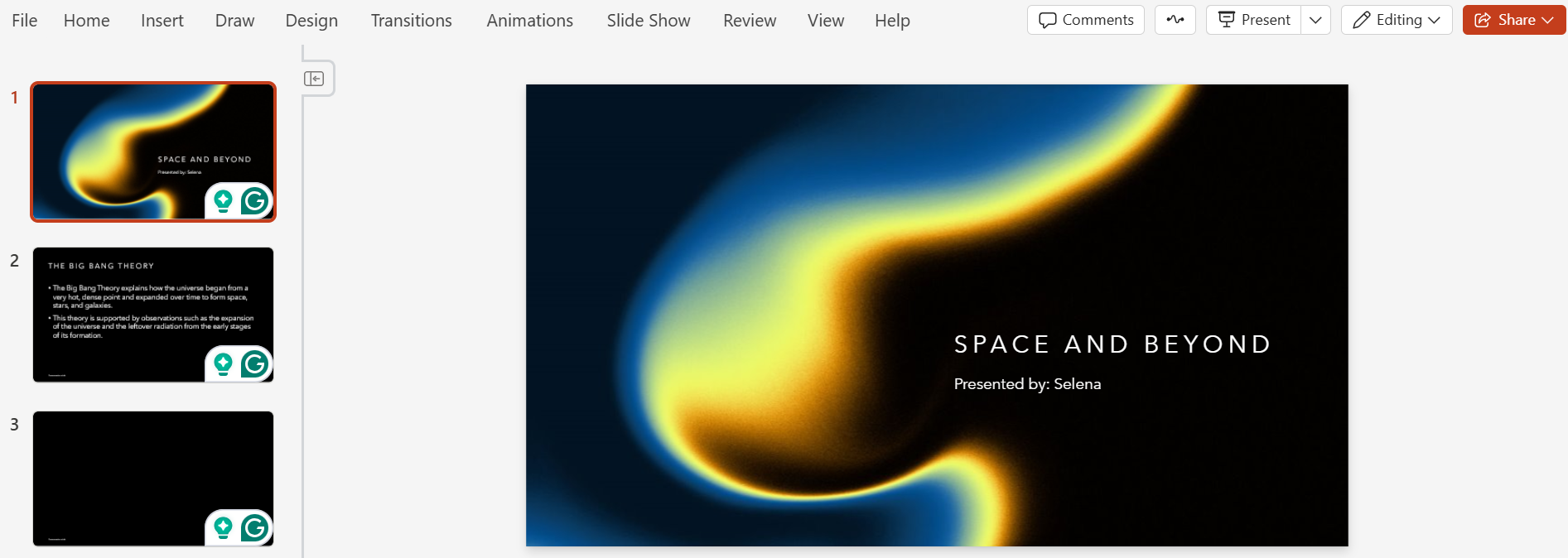
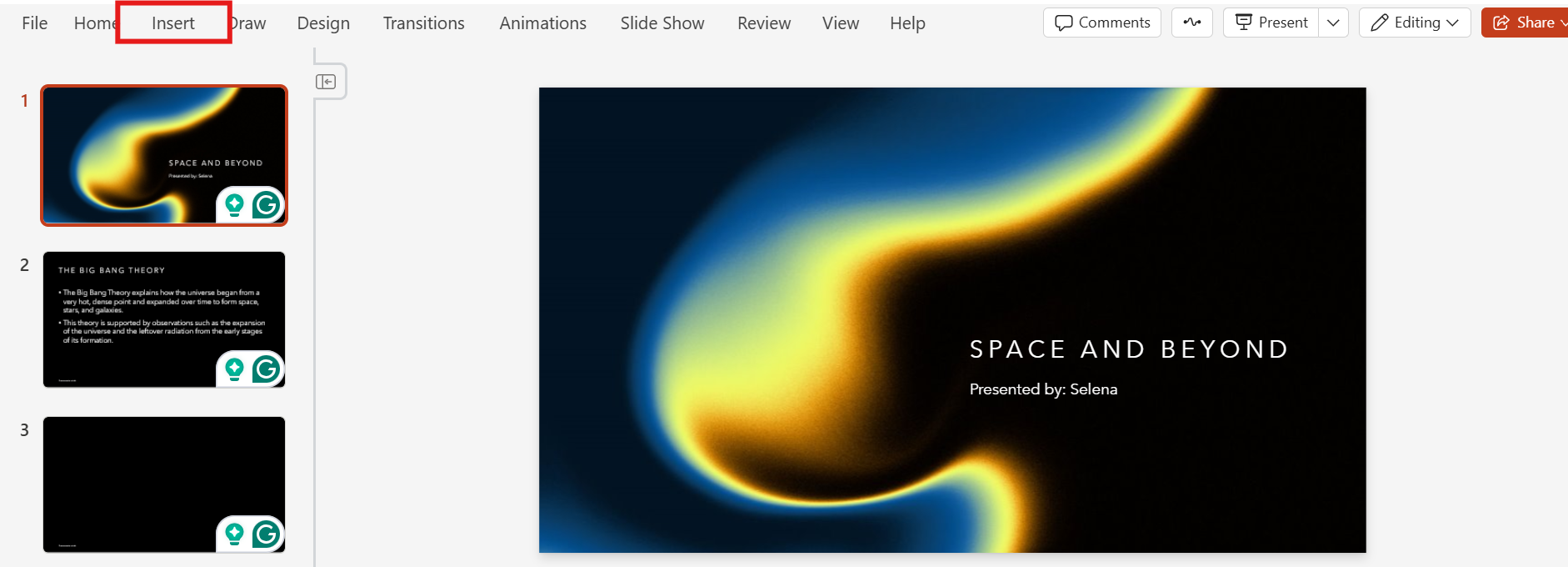
- Click on Insert tab
- Click on Audio option
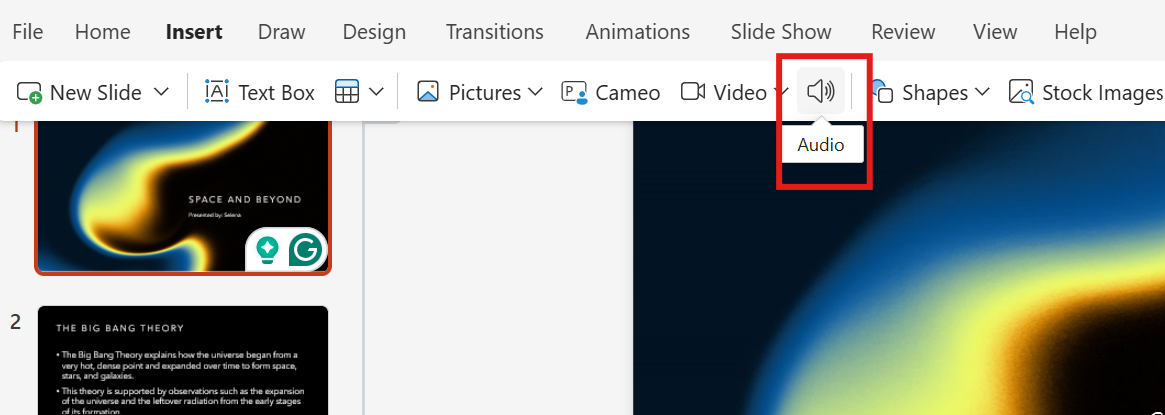
Clicking this gives you the choice to add audio from your computer.
Once you select your music file, PowerPoint places a small speaker icon on the slide. This icon represents the audio file. The music is now part of your presentation.
Making Music Play Automatically
After adding the music file:
- Click on the speaker icon
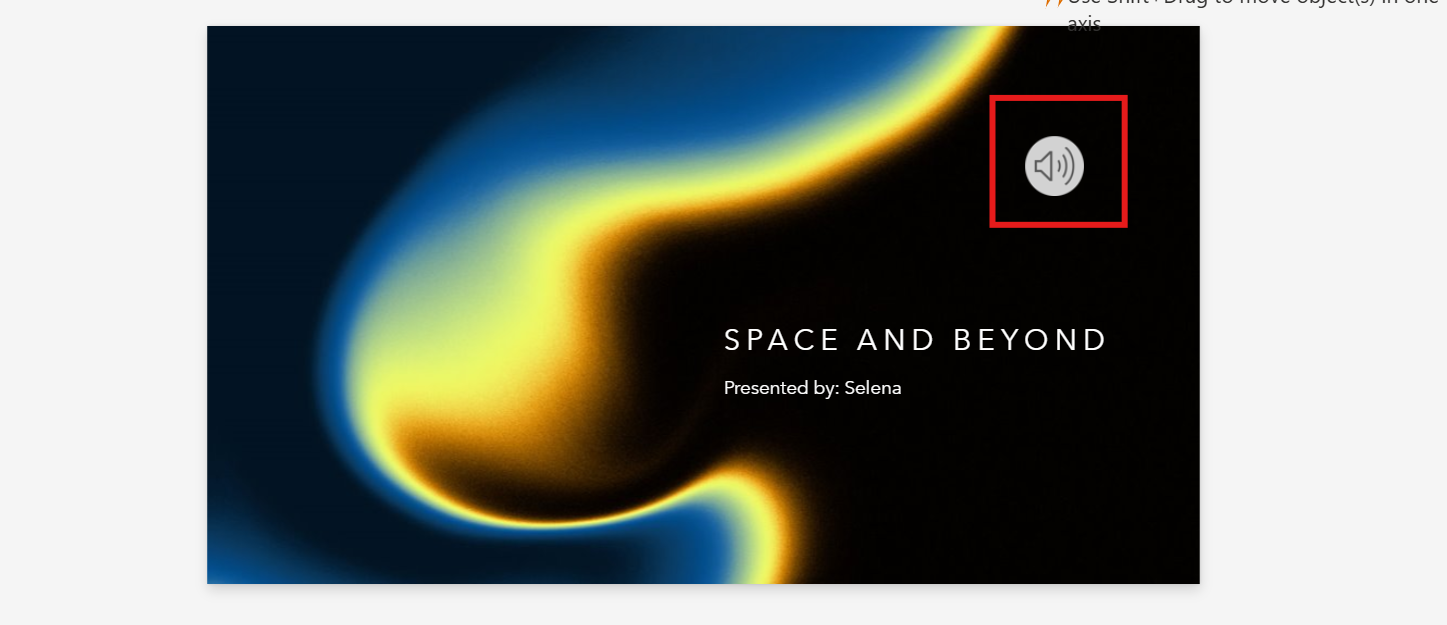
This opens the Audio Format or Playback tab in the menu
Here, you can choose to make the music start automatically instead of requiring a click.
Playing Music Across Multiple Slides
PowerPoint gives you an option to play your music across all slides.
For this:
- Select the speaker icon
- Open the playback settings

- Choose the option that allows audio to play across slides
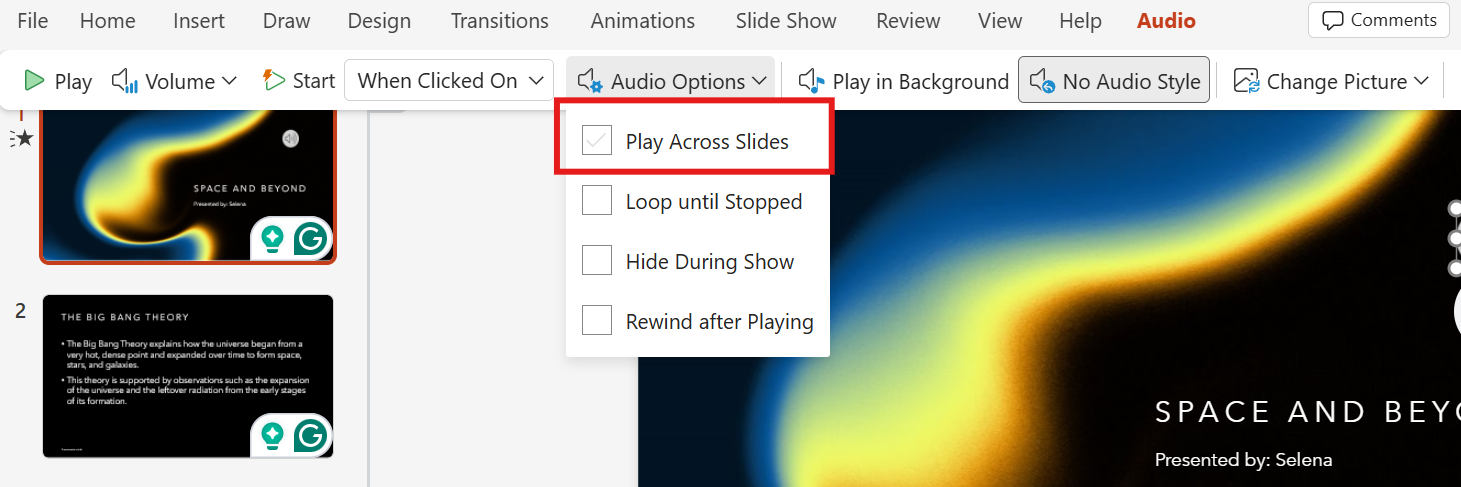
This is especially useful for:
- Intro music that continues across slides
- Background music
- Continuos soundtracks
Adjusting Volume and Audio Timing
PowerPoint also lets you control how loud the music is and when it stops.
- For this, click on the Volume button
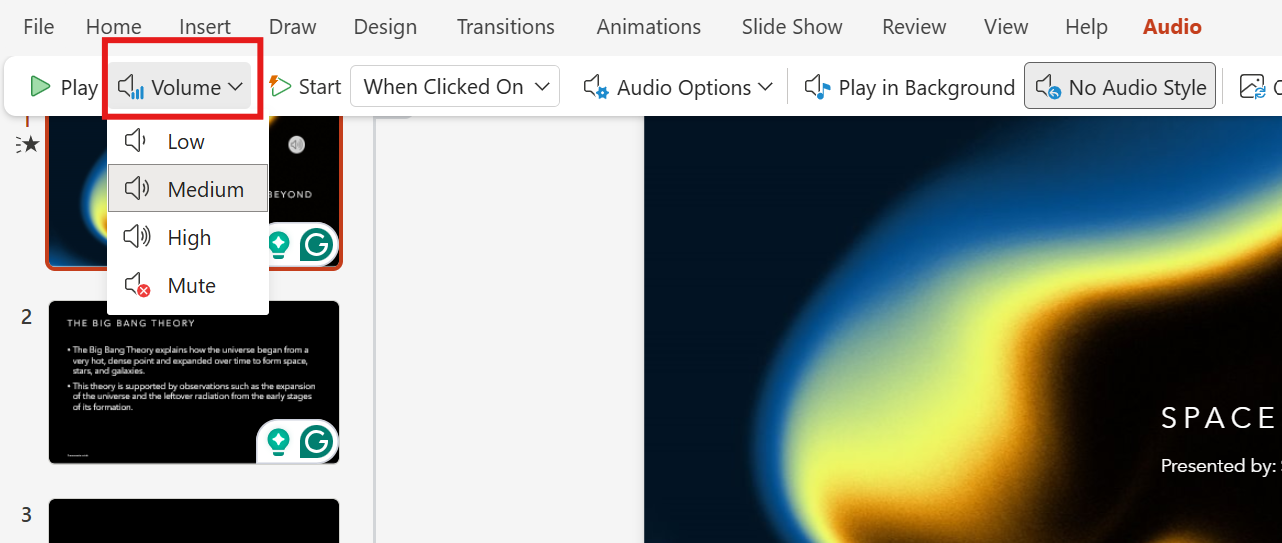
You can lower the volume so the music stays in the background and doesn’t overpower your voice. You can also trim the audio to start or stop at specific points, which is useful if you only need part of a song.
Hiding the Audio Icon During Presentation
During a slideshow, the speaker icon may be visible on your slide. If you do not want the audience to see this:
PowerPoint allows you to hide the icon during the presentation.
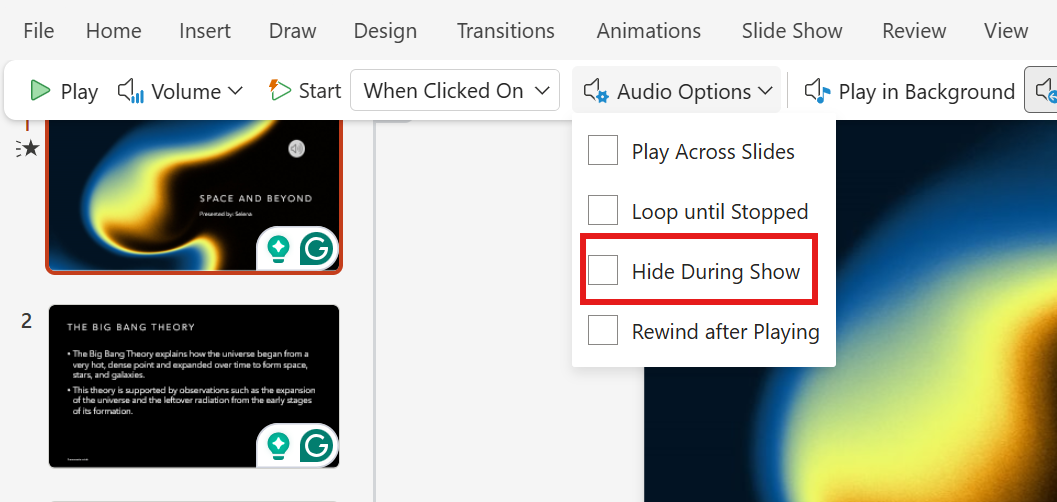
In this way, your slides look clean and professional.
Best Practices for Using Music in PowerPoint
- Music should enhance your presentation
- Choose the right music
- Soft tracks work better
- The music should match the tone of your presentation
- Test your presentation before presenting
Create Engaging Presentations Faster With MagicSlides
Adding music is easier when your presentation structure is already organized well enough. This is where MagicSlides.app helps.

MagicSlides, an AI-powered presentation maker tool, creates clean and visually balanced presentations in minutes! Instead of spending time designing slides from the beginning, you start with a ready-made structure. Once your slides are created, you can easily add music.
Because MagicSlides focuses on layout and clarity. Your presentation remains polished!
Common Mistakes to Avoid When Adding Music
- Using music that is loud
- Music should never overpower your voice
- Unnecessary placement of music on all the slides
- Not testing the audio playback
Conclusion
Adding music to PowerPoint is a simple way to make your presentation more engaging. You can easily create a smooth experience for your audience.
When music is used thoughtfully, it enhances storytelling. It also keeps viewers engaged. With a well-structured presentation, you can create a great presentation.
MagicSlides makes the whole process simpler by automating slide generation in under a minute!
Also: Read How to Make PowerPoint Portrait.
FAQs
Q1. Can I add music to PowerPoint on all slides?
Yes. By enabling the option to play audio across slides, music can continue throughout the entire presentation.
Q2. What audio formats work in PowerPoint?
Common formats like MP3 and WAV work well in most versions of PowerPoint.
Q3. Can I add music that plays automatically?
Yes. PowerPoint allows you to set audio to play automatically when the slide appears.
Q4. Will the music play when I share the presentation?
Yes. As long as the audio file is embedded and not linked externally.
Q5. Can I hide the speaker icon during the presentation?
Yes. PowerPoint has an option to hide the audio icon while presenting.
Q6. How does MagicSlides help with presentations that include music?
MagicSlides provides clean slide layouts that make it easy to add music without disrupting design or structure.
Q7. Can I add different music to different slides in PowerPoint?
Yes. You can insert separate audio files on different slides and control when each one plays.
Q8. Does adding music increase the PowerPoint file size?
Yes. Audio files are embedded in the presentation, so adding music can increase the file size depending on the length and quality of the audio.
Q9. Can I stop the music on a specific slide?
Yes. You can control where the music stops by adjusting playback settings or placing a new audio action on a specific slide.
Q10. Is it better to use background music or sound effects in PowerPoint?
Background music works best for smooth flow and mood setting, while sound effects should be used sparingly for emphasis.