
Change PowerPoint Slides to Portrait Orientation
PowerPoint slides are landscape by default. PowerPoint allows you to change slide orientation from landscape to portrait in just a few clicks!
In this guide, I will walk you through an easy method to make your PowerPoint slides portrait without ruining your layout!
PowerPoint Portrait: What is it?
In PowerPoint, portrait orientation is a vertical layout where the slide is taller than it is wide. This makes it ideal for mobile viewing, social media, print posters, etc.
Why Use Portrait Slides in PowerPoint
Portrait layout is useful when your content flows vertically.
Portrait orientation works well when:
- Your slides are printed
- Slides are shared as Docs
- Content includes long texts
- Presentations are viewed on mobile phones
- You are creating resumes and reports
Change Slide Orientation to Portrait Using the Design Tab
For this:
- Open your PowerPoint presentation
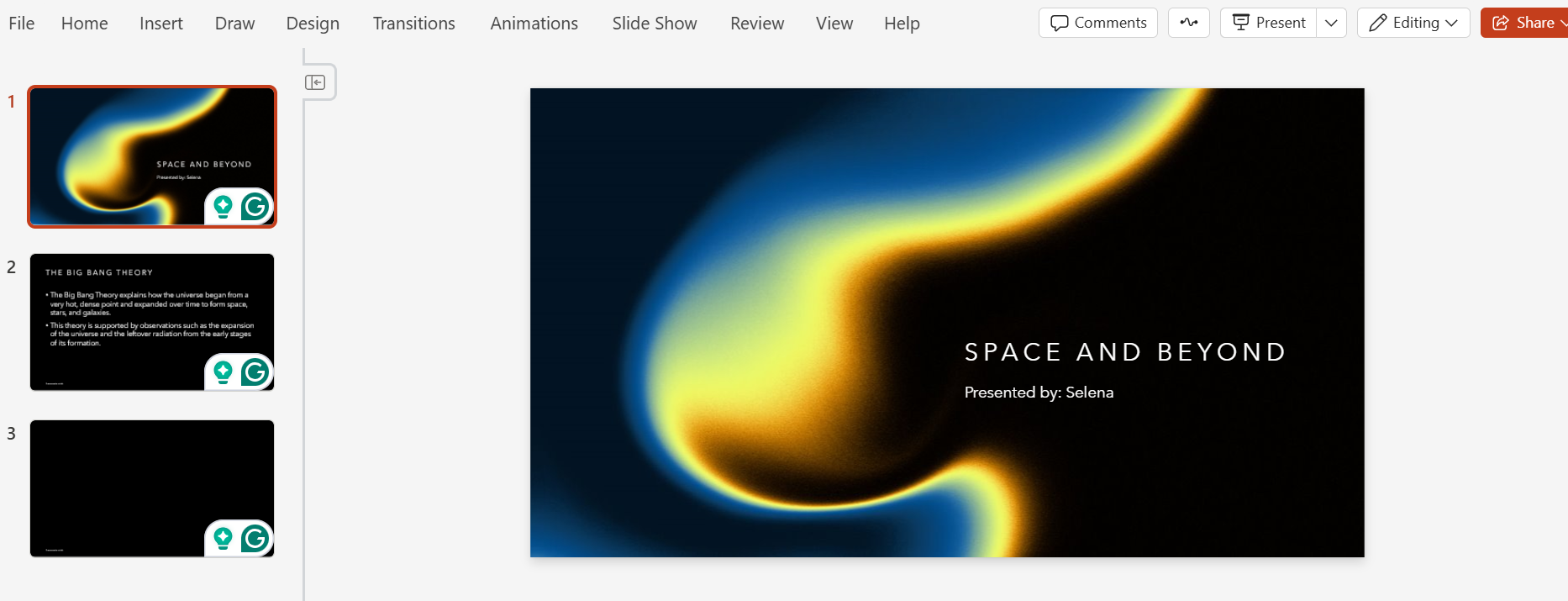
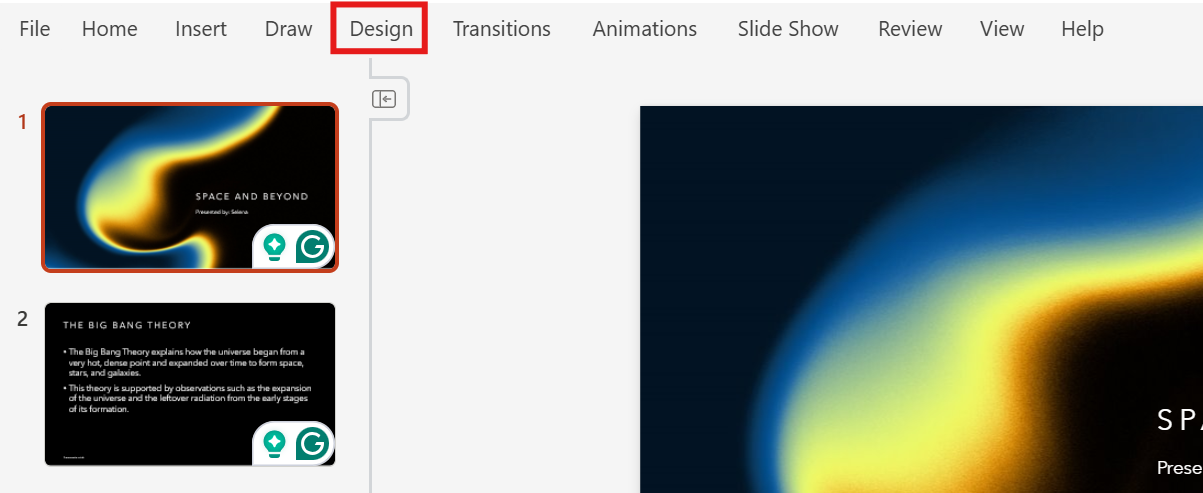
- Click on the Design tab
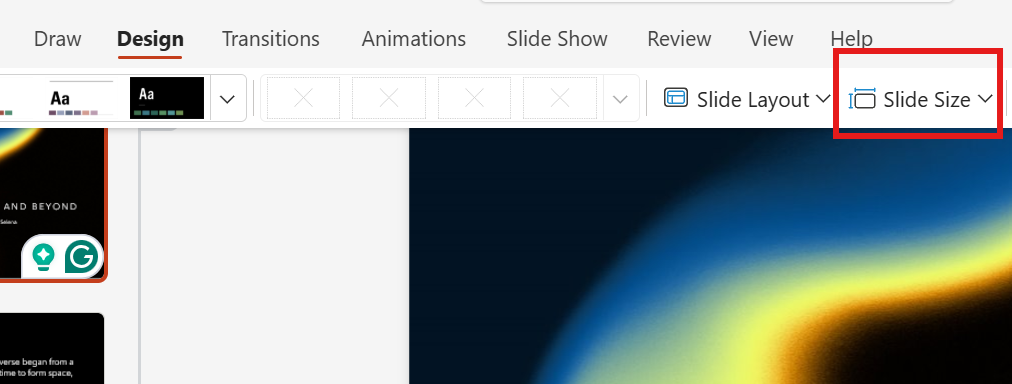
- Click on the Slide Size option
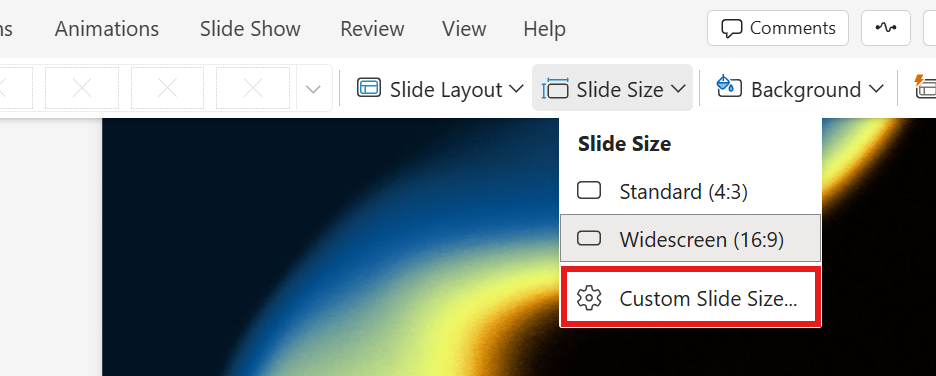
- Choose Custom Slide Size
- Select Portrait
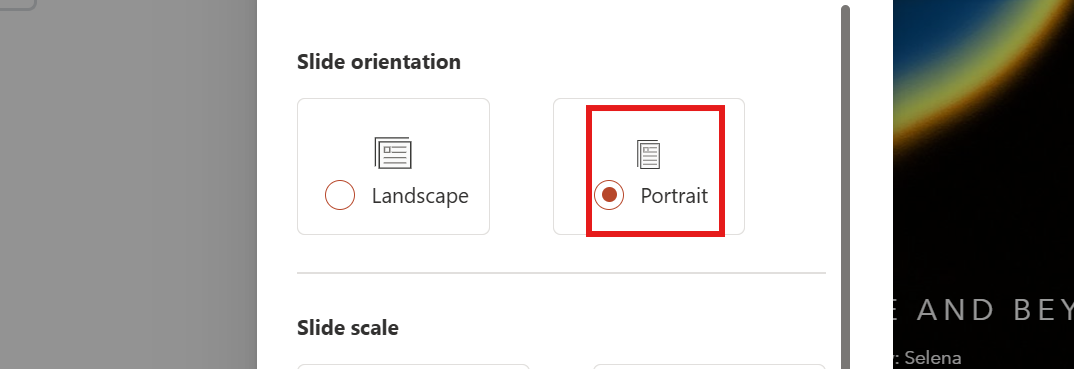
This is one of the easiest methods. It works well for both new and existing presentations.
Before switching your slides to portrait mode, it helps to understand slide dimensions. This article on How to change slide size in PowerPoint explains how different sizes affect your layout.
Portrait vs Landscape Slides Explained Simply
Landscape
- Landscape slides are wider
- They work best for screens
- They work well for videos
Portrait
- Portrait slides are taller
- They work well for documents, reading, and printing
If slides are meant to be read like pages, you can have portrait as the best option.
If they are meant to be presented on a screen, landscape works as the best option.
Common Mistakes to Avoid When Using Portrait Slides
- Do not overcrowd your slides with too much text
- Do not switch orientation late
- Do not skip reviewing the slides
- Always check the alignment
- Make sure to check the spacing
- Avoid mixing portrait and landscape
Create Clean Portrait Presentations Faster With MagicSlides
Switching slides to portrait is easier when the presentation is already structured well. This is where MagicSlides.app helps.
MagicSlides, an AI-powered presentation maker tool, generates organized presentations with balanced layouts and clear spacing. When you change the slide orientation to portrait, these slides adapt more smoothly. This reduces the need for manual work later.
MagicSlides helps you start with slides that are easier to adjust and reuse. This saves you time and keeps your presentation consistent.
Conclusion
Making PowerPoint slides portrait is simple and useful when your content is meant to be read vertically. It is also useful when it is to be printed vertically. PowerPoint provides easy options to change the slide orientation.
By choosing portrait orientation at the right time and reviewing your layout afterward, you can create slides that are clean and professional. MagicSlides further simplifies this entire process. It helps you start with structured slides that adapt well to portrait layouts.
Also: Read How to Turn PowerPoint Into Notes.
FAQs
Q1. Can I make only one slide portrait in PowerPoint?
No. PowerPoint applies slide orientation to the entire presentation, not individual slides.
Q2. Will changing slides to portrait delete my content?
No. All content remains, but you may need to adjust layout and spacing.
Q3. Is portrait orientation better for printing slides?
Yes. Portrait slides usually work better for printed documents and handouts.
Q4. Can I switch back to landscape after using portrait slides?
Yes. You can change slide orientation anytime using the same method.
Q5. Do animations still work after changing orientation?
Yes. Animations remain, but their position may shift slightly if content moves.
Q6. How does MagicSlides help with portrait presentations?
MagicSlides creates well-structured slides that adapt easily when switching to portrait orientation, reducing manual formatting work.
Q7. Does PowerPoint automatically fix layouts after changing to portrait?
No. PowerPoint keeps your content, but text boxes and images may need manual adjustment.
Q8. Is portrait mode suitable for all presentations?
Portrait mode works best for documents, reports, and printed slides, but landscape is still better for large screens and projectors.
Q9. Can MagicSlides help after changing slide orientation?
Yes. MagicSlides can regenerate clean slide layouts, making it easier to adapt content to portrait orientation without fixing spacing manually.
Q10. Should I change slide orientation before or after creating slides?
It’s better to choose portrait or landscape before creating slides, but tools like MagicSlides can help restructure slides even if you change orientation later.