
Changing Slide Size in PowerPoint Made Simple
Slide Size in PowerPoint: What is it?
PowerPoint slide size is the shape and dimensions of your slides. Choosing the right size ensures your presentation looks good on the screen you are using.
PowerPoint makes it easy to change slide size.
In this article, you will learn simple methods to change slide size in PowerPoint.
Let us get into it!
Why Slide Size Matters in PowerPoint?
- Slide size decides the shape of your slides
- It affects how your text, images, and videos appear
- Older projectors work better with standard size
- If the slide size does not match, the content may shrink
- It helps avoid layout issues
Method 1: Change Slide Size Using the Design Tab
This is the easiest method.
For this:
- Open your PowerPoint presentation
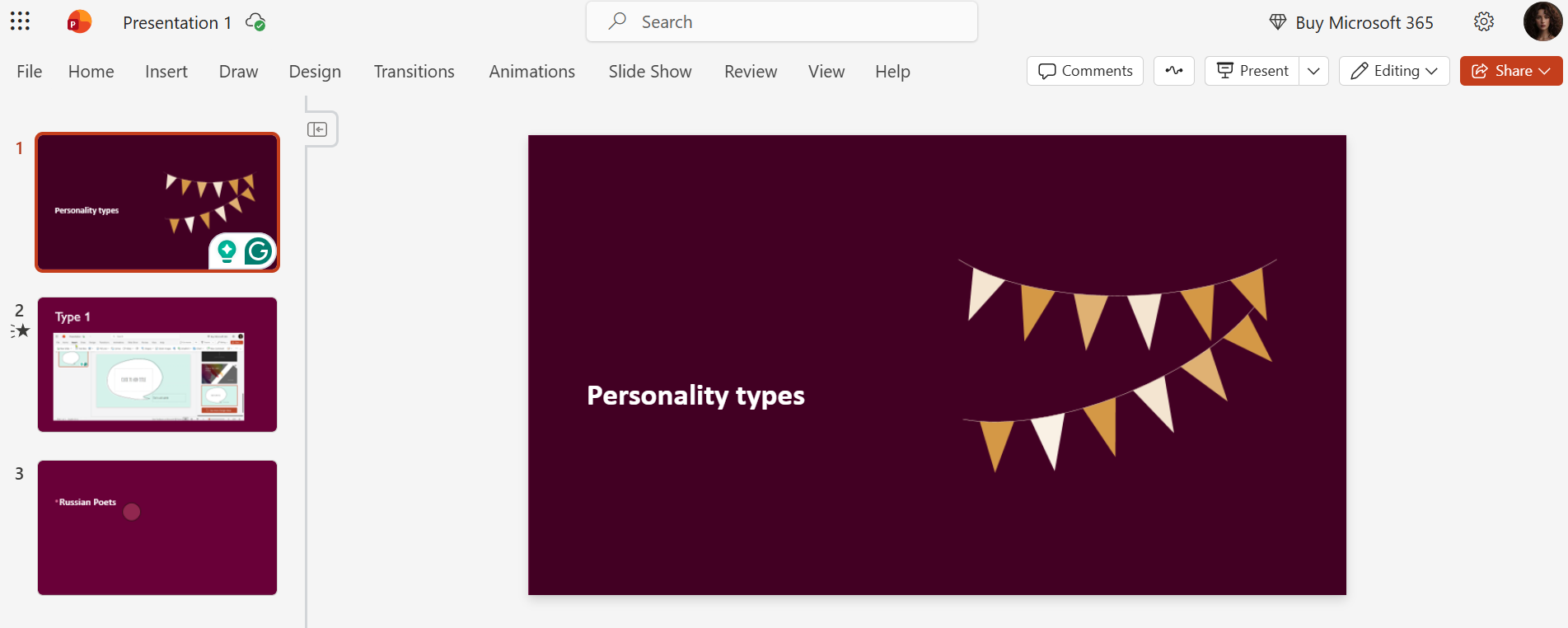
- Click on Design

- Click on Slide Size

- Choose Widescreen or Standard
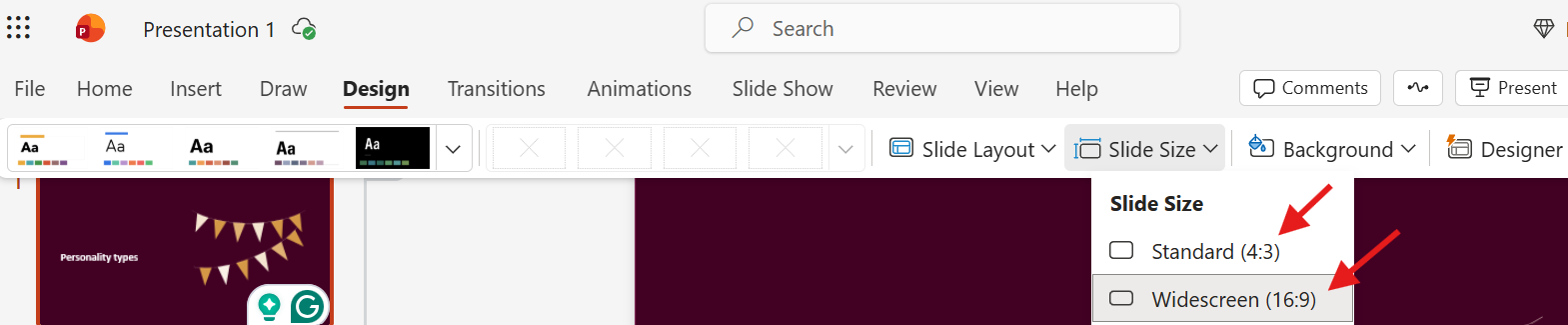
Choose the option that fits your content.

It is ideal for beginners. This is because PowerPoint automatically adjusts the layout.
Method 2: Use Custom Slide Size for Specific Needs
If you are creating slides for printing or posters, you may need a custom size.
For this:
- Open Design Tab
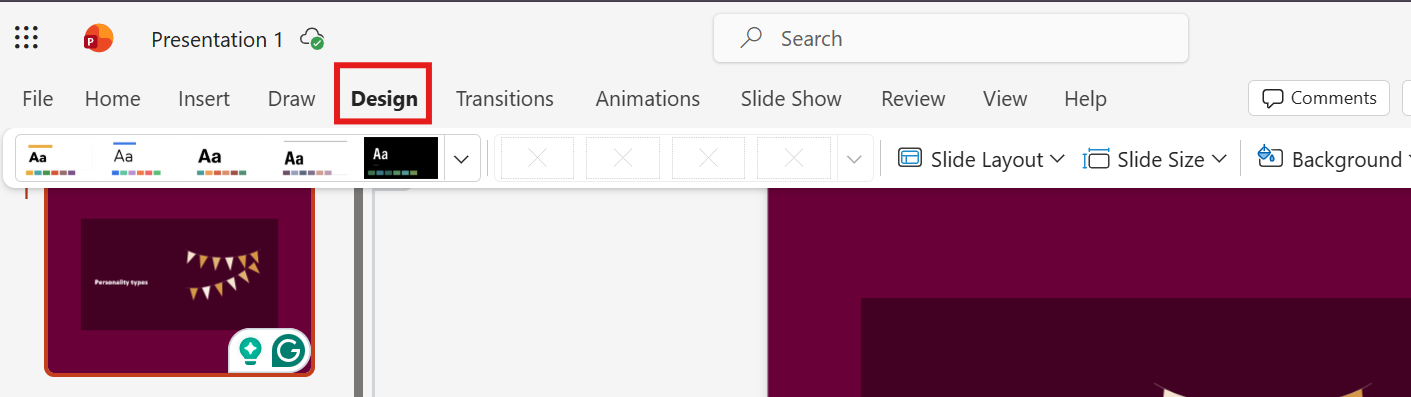
- Open Slide Size

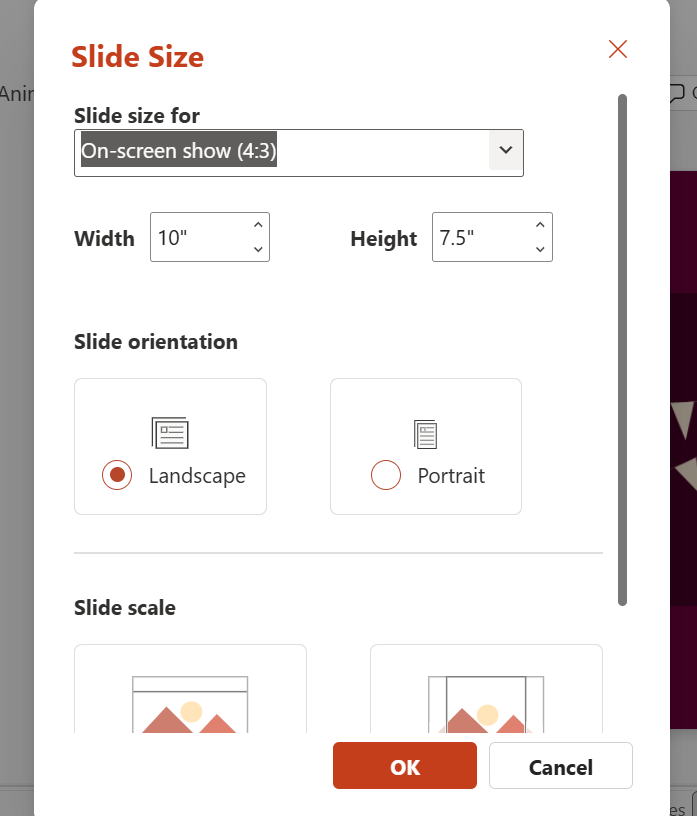
- Select Custom Slide Size

A window appears. Here, you can enter the width and height of your slides.
You can also choose landscape or portrait.
Method 3: Set Slide Size Before Adding Any Content
The simplest way you can avoid layout problems is by setting the slide size at the very beginning.
When you create a new PowerPoint file:
- Open Design Tab
- Choose slide size before you start
After adjusting your slide size, you may also want to organize your content better. You can learn how to convert your slides into readable notes in our guide on How to Turn PowerPoint Into Notes. What to Expect After Changing Slide Size?
- Text may shift a little
- Images may resize
- Charts might move
These adjustments are normal and are easy to fix.
Common Slide Sizes Explained Simply
- Widescreen slides - this is best for laptops and projectors
- Standard slides - this works better for older projectors or for printed handouts
- Custom slides - useful for posters and reports
Create Presentations That Adapt Easily With MagicSlides
Changing slide size becomes much easier when your slides are well-structured from the beginning. This is where MagicSlides.app helps.

MagicSlides, an AI-powered presentation maker tool, creates organized, clean presentations. It comes with layouts that are balanced. When you change slide size later in PowerPoint, these slides adapt better. This reduces the need for having to manually fix the slide.
Instead of spending time adjusting text boxes and resizing slides, MagicSlides helps you start with a solid structure! This works across different slide sizes. This makes presentation creation faster and more efficient.
Conclusion
Changing slide size in PowerPoint is simple. But it has a big impact on how your presentation looks. PowerPoint gives you flexible options to match different screens and formats.
Understanding when and how to change slide size helps you avoid layout problems. It helps you present your content clearly. MagicSlides helps you create adaptable and professional-looking presentations. Instantly.
Also: Read How to Download Canva as PPT.
FAQs
Q1. Can I change the slide size after creating a full presentation?
Yes. PowerPoint allows you to change slide size at any time. After changing it, review the slides to make sure the content still fits properly.
Q2. Does changing slide size affect all slides?
Yes. Slide size changes apply to the entire presentation, not individual slides.
Q3. Which slide size is best for online presentations?
Widescreen is the best option for online and screen-based presentations.
Q4. Will images stretch when I change slide size?
PowerPoint tries to resize images automatically, but minor adjustments may be needed in some cases.
Q5. Can I use custom slide sizes for printing?
Yes. Custom sizes are ideal for printed materials, posters, and handouts.
Q6. How does MagicSlides help when changing slide size?
MagicSlides creates well-balanced slides that adapt better when slide size changes, saving time on manual formatting.
Q7. Can I change the slide size for only one slide in PowerPoint?
No. PowerPoint applies slide size changes to the entire presentation. Individual slides cannot have different sizes.
Q8. What should I do if the content gets cut off after resizing slides?
After changing the slide size, review each slide and manually adjust text boxes or images so everything fits properly within the slide.
Q9. Is it better to use a widescreen or standard slide size?
Widescreen is better for modern screens and online presentations, while standard size works well for older projectors and printed handouts.
Q10. Will changing slide size affect slide transitions or animations?
Transitions and animations remain the same, but their position may shift slightly if the content moves after resizing.