
How to Autoplay Google Slides Without Manual Clicking
Google Slides is a free,web-based presentation program from Google. It lets you create, edit, and collaborate on slideshows online.
It also allows users to add text, images, videos, and animations.
Your presentation should work even when you’re not there to control it. For this, autoplay is the simplest solution.
This guide shows you how to autoplay Google Slides properly, and how MagicSlides.app helps free autoplay that is smooth and intentional.
Let us get into it.
Why Let Your Presentation Run on Its Own?
Automatic slide playback isn’t just about convenience. It improves how your presentation is experienced. Below, I have given how autoplay can be helpful for you.
- Works without supervision: This is ideal for screens, kiosks, and shared links where there is nobody to click through slides.
- Keeps a steady flow: Slides move at a consistent pace. This does not cause rushed transitions.
- Looks more professional: A self-running presentation feels polished and intentional.
- Helps the audience focus on content: Viewers pay attention to the message instead of slide controls or navigation.
- Maintains consistent timing: Every slide gets equal attention without any sudden delays or skips.
Different Methods to Autoplay Google Slides
Option 1: Auto-Advance Slides During a Live Presentation
Google Slides includes an auto-advance option. This is for live presenting.
- You can start a slideshow and open Presenter view. Here, you can set slides to move forward after a fixed interval.

This option is useful when you want control over timing, but you still plan to be present during the presentation.
But it is not designed for looping or for public sharing.
Option 2: Autoplay Google Slides Using Publish to Web
For presentations that need to run on their own, Publish to web is the most reliable solution.
- Once it is published, your slides are automated according to the timing that you choose. Here, you can enable looping.

This method works especially well for kiosks, website embeds, and also for shared links.
Option 3: Autoplay Google Slides on a Website
- Embedding Google Slides allows your presentation to begin playing the moment a webpage loads.
This is commonly used for product demos and for learning resources.
Why Slide Design Matters More in Autoplay Mode
Autoplay removes the presenter’s voice.
- The slides must stand on their own
- Each slide should focus on one idea
- It should be supported by clean visuals
- There should be readable spacing
This is where structure becomes more important than design.
How MagicSlides Makes Autoplay Presentations Work Better
MagicSlides.app, an AI-powered presentation maker tool, is built around clarity.
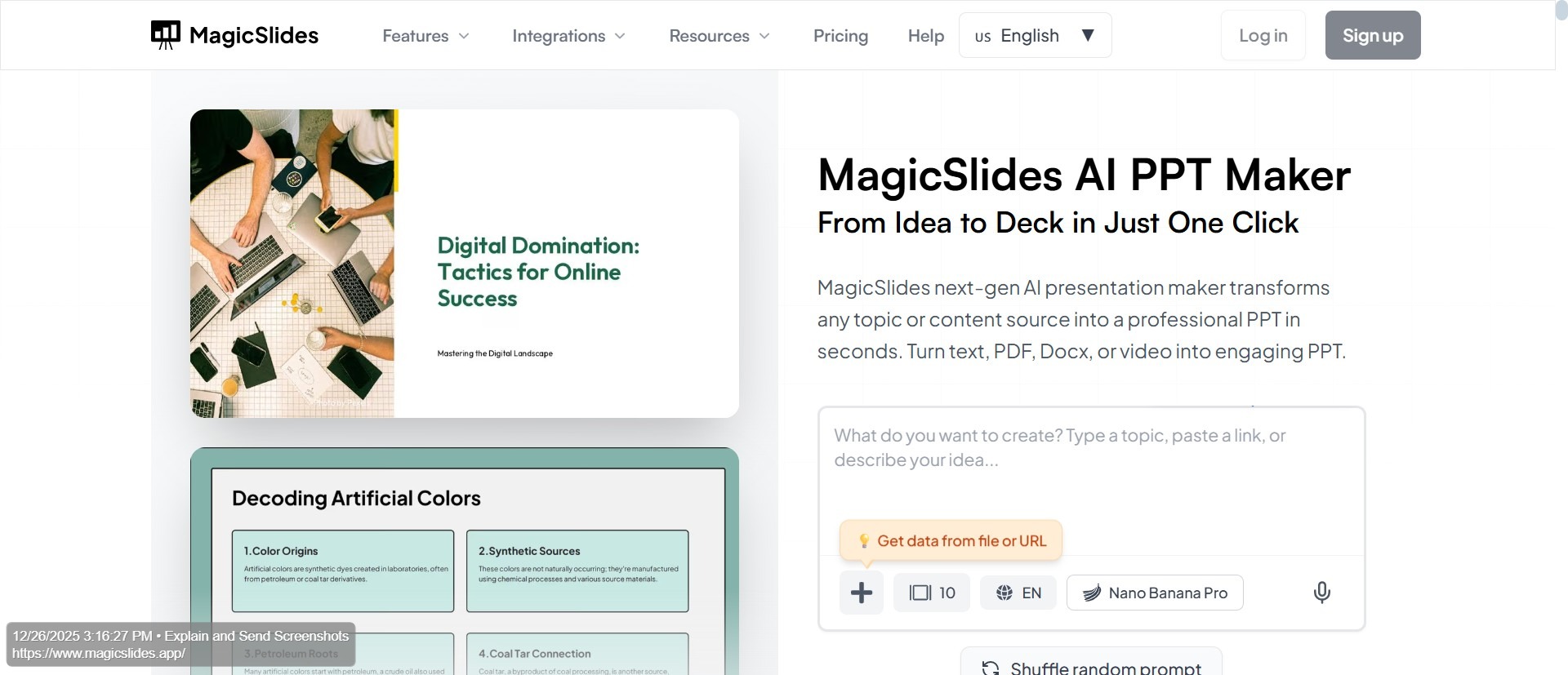
Instead of crowding your slides with content, MagicSlides organizes information into clean layouts that are easy for the audience to read at a glance! This makes a noticeable difference. This makes the slides advance automatically.
MagicSlides helps ensure:
- Clear visual hierarchy
- Consistent slide structure
- Better readability
- Smoother pacing
When slides are structured properly from the start, autoplay feels very natural.
How to apply autoplay using MagicSlides?
- Create slides in MagicSlides
- Export to Google Slides
- Enable autoplay in Google Slides
- Test and Adjust
MagicSlides ensures your slides are autoplay-ready from the start.
When is Autoplay the right choice?
Autoplay works best when presentations are meant to be viewed calmly.
It works best for displays, demos, and informational content.
Knowing when to use autoplay helps you design more effective presentations. So keep this in mind!
Simple Tips for Smoother Autoplay Slides
- Use large fonts: Large, readable fonts ensure that viewers can quickly read the content without straining their eyes. Make sure the headlines and key points stand out clearly. This makes it easy to grasp the main idea at a glance.
- Keep content focused: Each slide should convey a single idea or message. Focused content improves clarity and retention.
- Avoid overcrowding: Too many elements can overwhelm the viewers. Therefore, whitespace is essential.
Design slides as if no one will explain them. Because in autoplay mode, they won’t.
Conclusion
With autoplay, Google Slides can run automatically without manual control. This works well for displays, embeds, etc. But autoplay succeeds only when slides are designed for clarity and for pacing.
With MagicSlides, you can create well-structured and readable Google Slides. When slides are built right, autoplay stops being a feature, and instead it starts being an advantage.
Add: Read How to Make a Multimedia Presentation.
FAQs
Q1. Can Google Slides autoplay automatically?
Yes. Google Slides allows autoplay through Presenter view and Publish to web options.
Q2. Can I loop Google Slides during autoplay?
Yes. Looping is available when using the Publish to web feature.
Q3. Does autoplay work on all devices?
Yes. But slide timing should always be tested on different devices.
Q4. Is autoplay suitable for professional presentations?
Yes. Autoplay works well for displays, demos, and self-running content.
Q5. Can MagicSlides help with autoplay presentations?
Absolutely! MagicSlides creates structured slides that remain clear and readable when autoplay is enabled.
Q6. Can I export autoplay Google Slides later?
Yes. Autoplay settings don’t affect exporting slides as PDFs or as videos.
Q7. Can I adjust the speed of autoplay in Google Slides?
Yes. When using Publish to web or Presenter view, you can set how long each slide stays on screen, even before advancing.
Q8. Will autoplay work if I share the Google Slides link with others?
Yes. If you enable Publish to web with autoplay, anyone with the link can view the presentation running automatically.
Q9. Does MagicSlides improve autoplay presentations?
Yes. MagicSlides helps you create clear and structured slides that are easy to follow. This makes autoplay smoother and also more professional.