
How to Convert Word to PPT - Simple Methods that Work
Converting a Word document into a PowerPoint presentation can feel tedious and confusing. It is time-consuming.
Meeting notes, reports, and assignments are all written first and then later turned into slides. This is where many people get stuck.
In this guide, I will explain how to convert Word to PPT the right way. It will also focus on clarity and structure.
Let us get into it!
Why is converting Word to PPT more Difficult Than It Seems?
Because both serve different purposes.
- Word documents are designed for reading
- PowerPoint slides are designed for presenting
When people treat slides like documents, presentations become cluttered and hard to follow. This is why many Word-to-PPT conversions fail.
What a Successful Word-to-PPT Conversion Looks Like?
A good conversion:
- Identifies the main idea of each section
- Turns headings into slide titles
- Breaks content into logical chunks
- Keeps slides readable at a glance
Note: the audience should be able to understand your slide’s message in a few seconds.
Method 1: Manual Word to PPT Conversion
This is the widely used traditional method.
For this:
- Open your Word document
- Create a PowerPoint file
- Copy your content section by section
This method gives you full control. It works best for short documents and for high-stakes presentations.
- It consumes your time
- It is not ideal for documents that are long
Method 2: Preparing the Word Document Before Conversion
This step makes a huge difference.
Note: Make sure to structure your Word document before you convert it.
For this, make sure to:
- Use clear headings
- Use clear subheadings
- Use one idea per section
- Don't repeat the same content
- Use shorter paragraphs
Method 3: Using AI to Convert Word to PPT
AI changes your entire conversion process.
Instead of manually deciding what goes onto each slide, AI analyzes the structure of your document. After this, it automatically creates a presentation draft.
With AI, structuring is already done.
When Word to PPT Conversion Is Most Useful?
Converting Word to PPT works especially well when:
- You already have detailed written content
- The presentation is explanatory
- The presentation is informative
- You need results quickly
- Consistency across slides matters
Common Mistakes People Make While Converting
Here are a few common mistakes:
- Including every sentence from the Word document
- Ignoring flow
- Adding too many explanations
Improving Slides After Conversion
Note: Make sure to always review your slides after converting.
- Shorten text where possible
- Add visuals only where they help understanding
- Reorder slides if the flow feels off
- Simplify the language
Why AI-Based Conversion Is Becoming Popular?
- It removes repetitive work
- People want to focus on explaining ideas clearly
- AI handles the structure
MagicSlides.app - The Best Solution for your Conversion Process
Once your Word document is structured and ready, the MagicSlides Word to PPT Converter naturally becomes the next step.
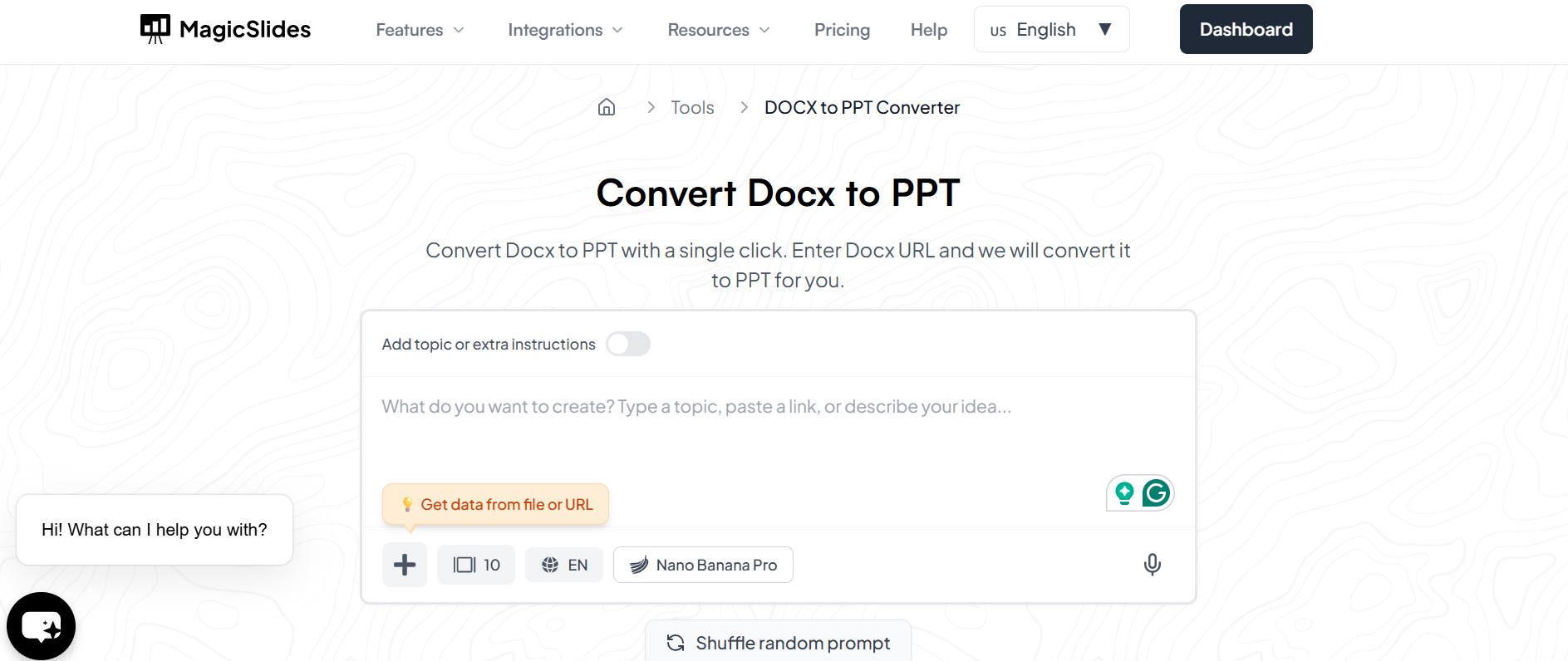
Instead of manually breaking content into slides, the MagicSlides converter helps turn Word documents into structured presentation drafts within minutes! It understands headings and the flow. In this way, you can start with slides that already make perfect sense.
You can still edit and customise your presentation. MagicSlides is your answer if you are looking for a tool that can save you time and energy. It also professionally builds presentations. All under a minute!
Conclusion
When done correctly, you can have effective presentations. You also need to structure and review your presentation later.
For those who regularly work with making presentations, MagicSlides Word to PPT Converter is the most reliable solution.
Also: Read How to Print Google Slides with Notes.
FAQs
Q1. Can I convert a long Word document into a PPT?
Yes. Long documents can be converted. But reviewing and simplifying slides afterward is recommended.
Q2. Does Word-to-PPT conversion copy all text into slides?
Not ideally. Good conversion focuses on structure and clarity rather than copying every line.
Q3. Is manual conversion better than AI tools?
Manual conversion offers full control. But AI saves you time. It is also better if you are looking for professionalism.
Q4. Is the MagicSlides Word to PPT Converter suitable for professional presentations?
Yes. It is useful for reports, proposals, internal reviews, and client-facing decks.
Q5. Do I still need to edit slides after converting from Word?
Yes. Editing improves clarity, flow, and audience engagement.
Q6. Can the MagicSlides Word to PPT Converter handle complex Word documents with tables and images?
Yes. It intelligently incorporates tables and images, placing them appropriately on slides while keeping the layout clean.
Q7. Will using the MagicSlides converter save me significant time compared to manual conversion?
Absolutely. It creates a structured draft in minutes, reducing hours of manual slide-building work.
Q8. Can I customize the slides after using the MagicSlides Word to PPT Converter?
Yes. The slides are fully editable in PowerPoint or Google Slides, so you can adjust text, visuals, and design as needed.
Q9. Is the MagicSlides Word to PPT Converter suitable for large team projects?
Yes. Teams can quickly turn shared documents into slides and then collaborate on editing, ensuring consistency and efficiency.
Q10. Does Word-to-PPT conversion work for any type of content?
Mostly yes. It works best for explanatory, report-based, or structured content. Very technical or highly creative documents may need extra manual adjustments.