
How to Print Google Slides with Notes (A Clear, Practical Guide)
If you are feeling confused about printing Google Slides with speaker notes, then you have landed on the right page.
The truth is, Google Slides already gives you everything you need for this.
You just have to follow the right steps.
In this guide, I will walk you through exactly how to print Google Slides with notes.
What Speaker Notes Are Used For?
What are speaker notes?
Speaker notes are prompts or reminders that help you stay on track while recording a video or presentation.
These notes help you remember what to say. It helps you against crowding your slides.
Speaker notes for presentation. Why?
- Key talking points
- Explanations not shown on slides
- Reminders
- Extra content for slides that are complex
When is Printing Slides with Notes actually helpful?
Printing slides with notes:
- You are presenting in person
- You want paper backup in case tech fails
- You are rehearsing a presentation
- You are teaching
- You want to review slides
This is basically more reliable.
Method 1: Print Google Slides with Notes Using Built-In Print Settings
For this;
- Open your presentation in Google Slides

- Click File (from the menu)

- Select Print settings and preview

- Click on Layout options

- Click on 1 slide with notes

- Click Print
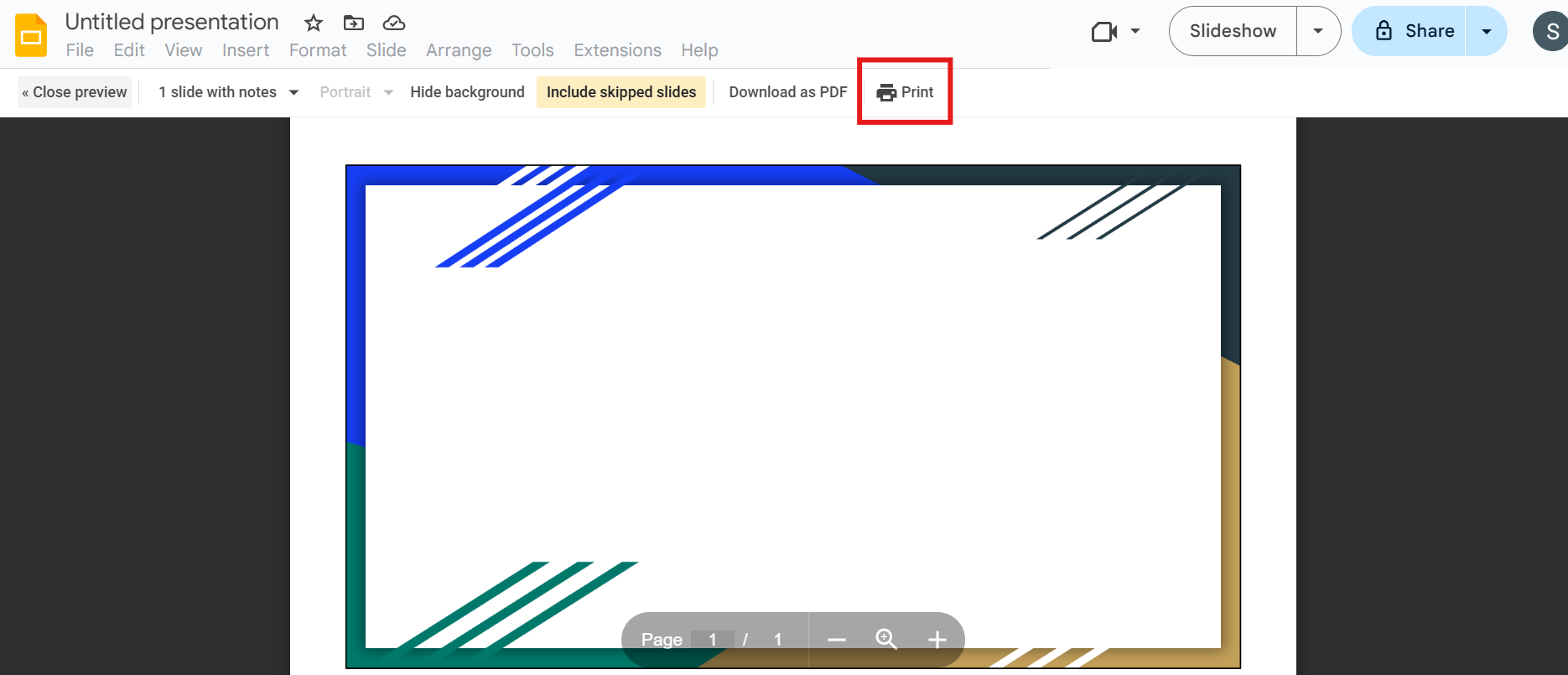
Method 2: Save Slides with Notes as a PDF Instead of Printing
For this;
(follow the same steps as above)
- Open your presentation in Google Slides
- Click File (from the menu)
- Select Print settings and preview
- Click on Layout options
- Click on 1 slide with notes
- Click Print
When the print dialog opens;
- Click on Save as PDF

That is it!
What is it useful for?
- Sharing with teammates
- Reviewing on another device
- Print later without having to reopen the slides
Preparing Your Notes So They Print Well
Note: Preview your notes before printing.
- Break notes into small sections
- Avoid repeating what is already on the slide
- Make sure the notes support the slide
Paper Orientation for Printing
Google Slides by default prints notes in portrait mode. So, if your notes feel squeezed, you can:
- Reduce the amount of text
- Increase line spacing inside notes
- Test print one page before printing out everything
Common Problems People Face (and Why They Happen)
Many people think notes are missing when they print. In most cases, it’s because:
- The slide-only layout was selected
- Print preview was not used
- Notes were not added properly
- Unreadable notes
Printing Slides with Notes for Practice vs Live Presentation
- If you are printing for practice, longer notes work better
- If you are printing for a live presentation, shorter notes work better
Note: Adjust notes depending on how you plan to use them.
Organizing Slides Before Adding Notes with MagicSlides
Speaker notes work best when slides are already well structured.
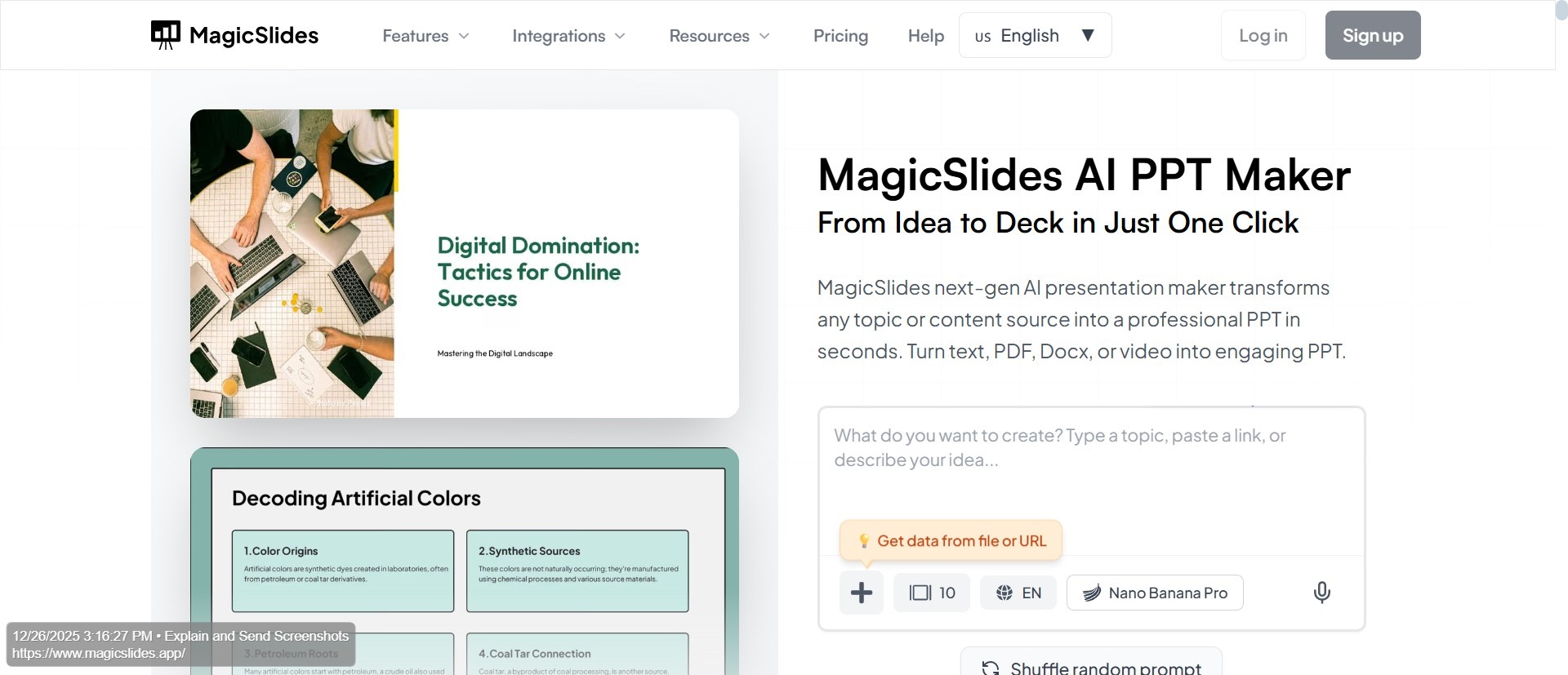
Some people prefer to first organize slides quickly before polishing notes. This is where MagicSlides.app, an AI-powered presentation maker tool, can help by speeding up slide creation and organization before you add speaker notes and move on to printing.
MagicSlides helps you generate an entire professional presentation, under a minute. All you have to do is enter your prompt!
Conclusion
Printing Google Slides with notes isn’t complicated once you know where to look. The key is using Print settings and preview, and choosing the correct layout. Make sure to keep the notes clear and readable.
MagicSlides helps you make this entire process easier by generating a well-structured slide, making your slide creation faster and more reliable.
Also: Read How to Autoplay Google Slides.
FAQs
Q1. Can I print Google Slides with notes on every page?
Yes. Using the “1 slide with notes” layout prints one slide per page with its notes underneath.
Q2. Do speaker notes print automatically?
No. You must select the notes layout in print settings.
Q3. Can I edit notes after saving as a PDF?
No. You’ll need to edit the notes in Google Slides and export again.
Q4. Are speaker notes visible during the presentation?
No. Notes are private unless you print or share them.
Q5. Can MagicSlides.app help before printing notes?
Yes. It can help you organize or create slides faster before adding notes and printing them.
Q6. Can I print Google Slides with notes on both sides of the paper?
Yes. You can enable double-sided printing from your printer settings, as long as your printer supports it.
Q7. Will animations or transitions appear in printed notes?
No. Printed slides show only the final static version of each slide, not animations or transitions.
Q8. Can MagicSlides.app be used before adding speaker notes?
Yes. You can first use magicslides.app to quickly create or organize slides, then add speaker notes in Google Slides before printing.
Q9. Does using MagicSlides.app affect speaker notes in Google Slides?
No. Once slides are created or edited, speaker notes work normally inside Google Slides and print the same way.
Q10. Is MagicSlides.app useful if I already have content ready?
Yes. If you have rough content or ideas, MagicSlides.app helps turn them into clean slides faster, so you can focus on notes and presentation flow instead of slide layout.