
How to Collect Consent Using Google Forms
Google Forms is one of the easiest tools to create a consent form. Everything can be done using basic options inside Google Forms.
In this guide, you will learn simple methods to create a consent form in Google Forms. Let us get into it!
What Is a Consent Form?
A Consent Form is a form where users clearly agree to something before they submit their details.
This agreement is usually given by selecting a checkbox.
Consent Forms are commonly used for:
- Surveys
- School or college activities
- Medical or health-related data
- Event registrations
- Research projects
- Marketing signups
- Newsletter signups
Consent Form: Method to Create
Step 1: Open Google Forms
Begin by opening Google Forms in your web browser. You can access Google Forms by visiting forms.google.com and signing in with your Google account.
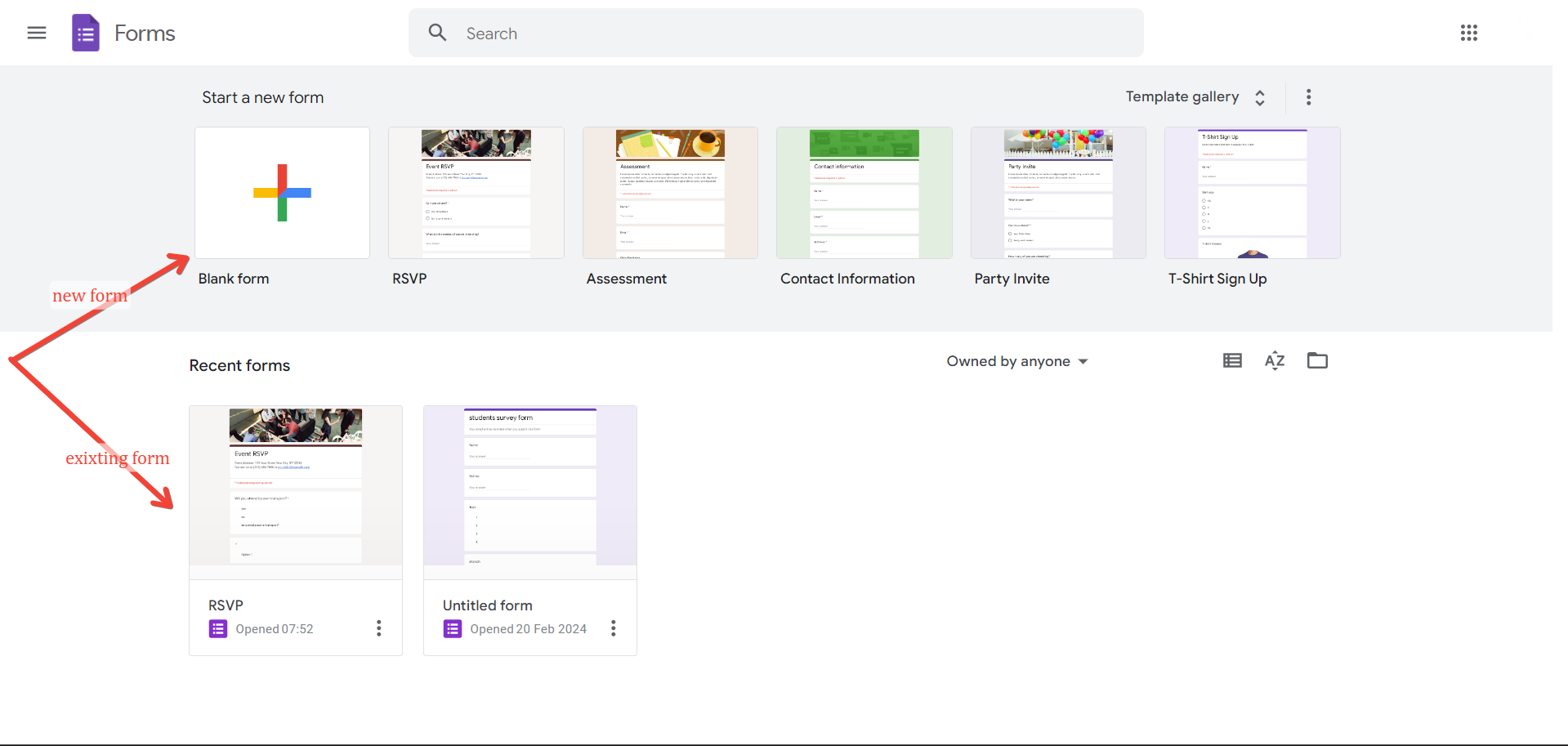
Step 2: Create a New Form
Click on the "+" button to create a new form or choose an existing form template that you want to use as the basis for your consent form.
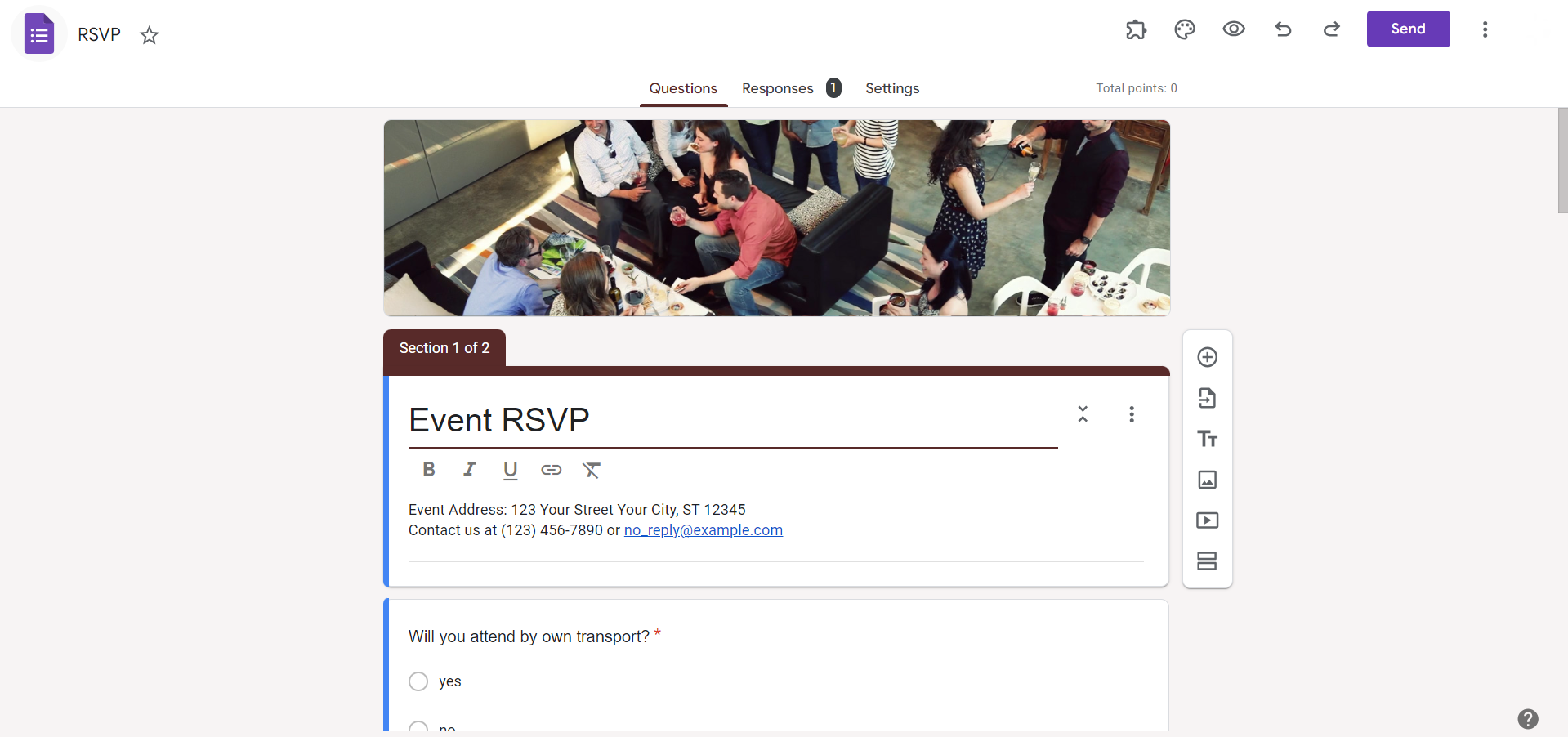
Step 3: Add Consent Information
In the form editor, add a title and description explaining the purpose of the consent form. Clearly state what participants are consenting to, including the activities involved, data collection methods, and how their information will be used.
Step 4: Include Consent Questions
Create specific consent questions or statements that participants must agree to. For example, include checkboxes or radio buttons for participants to indicate their agreement or disagreement with the terms outlined in the consent form.
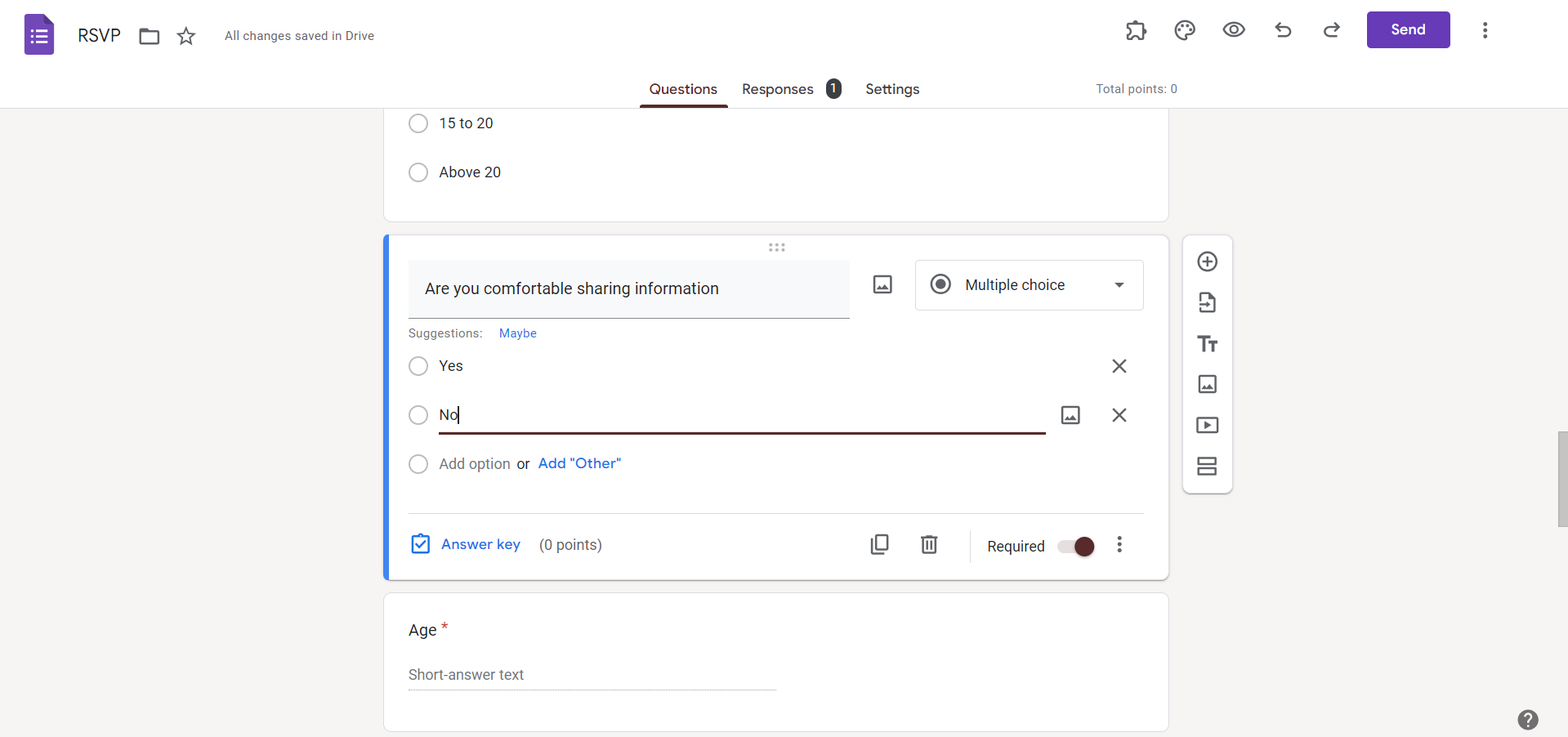
Step 5: Customize Form Settings
Customize your form settings as needed, such as requiring respondents to log in to their Google accounts to submit the form or limiting responses to one per person.
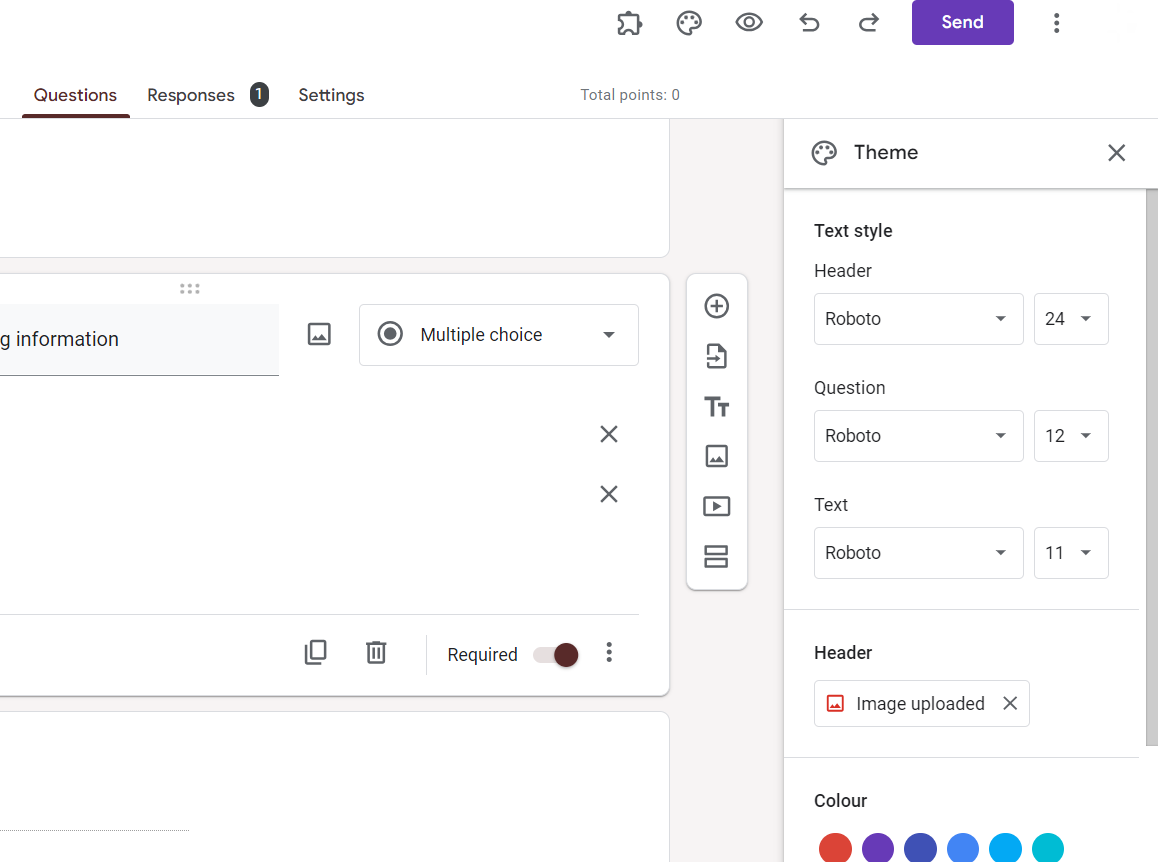
Step 6: Design and Format
Enhance the visual appeal of your consent form by customizing the theme, adding images or logos, and formatting the text to make it clear and easy to read.
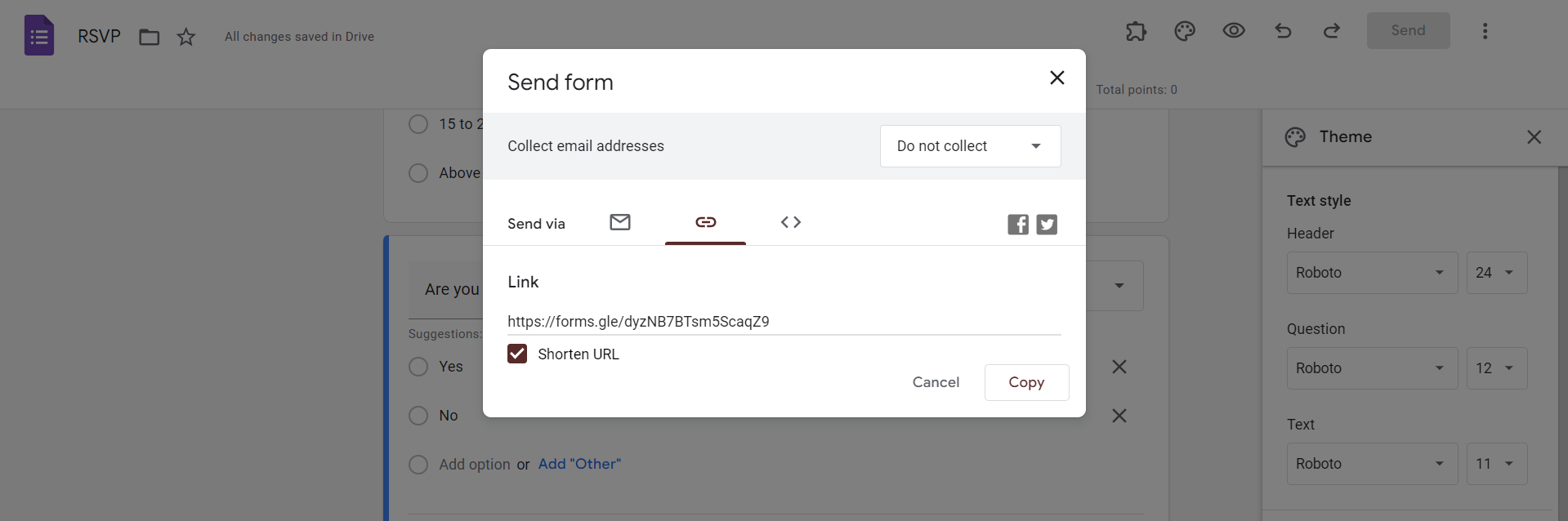
Step 7: Share Your Consent Form
Once your consent form is ready, click on the "Send" button to share it with participants. You can share the form link via email, social media, or embed it on a website.
Step 8: Monitor Responses and Compliance
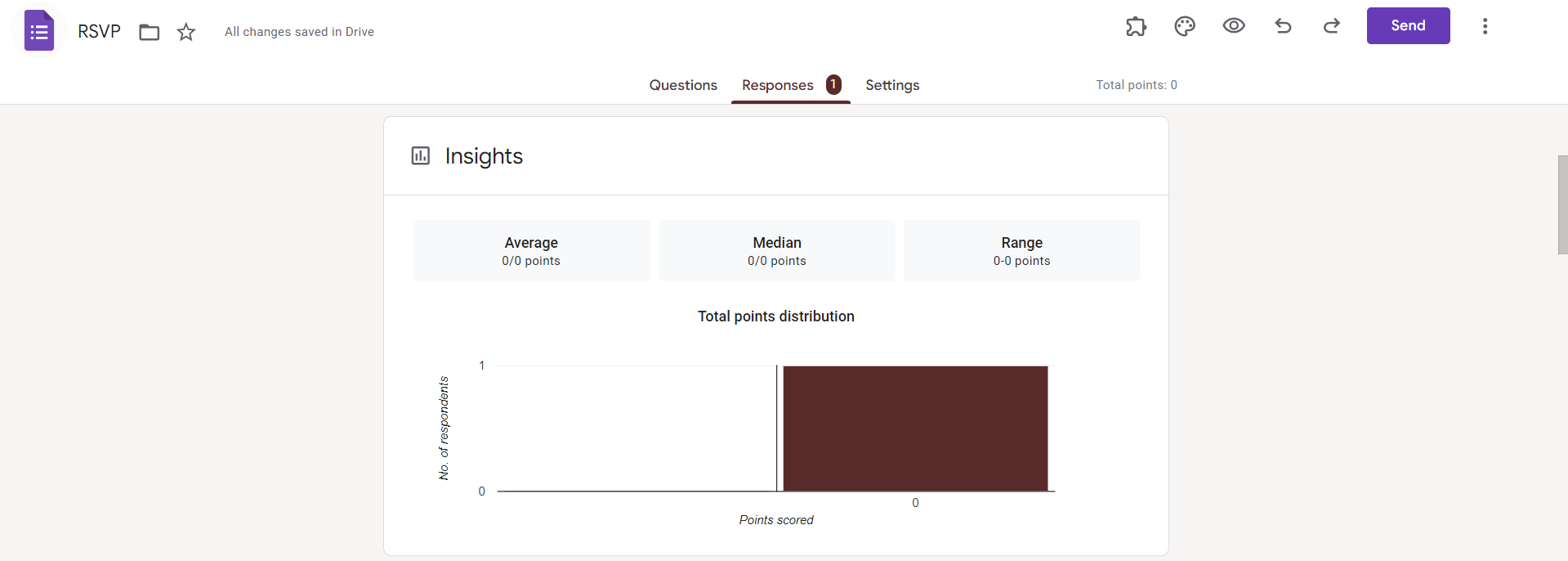
Monitor responses in real-time using the responses tab in Google Forms. Ensure that participants have provided their consent as required before proceeding with any activities that require authorization.
What Information Should a Consent Form Include?
A good consent form should always include:
- The purpose of the form
- What information is collected
- How the data will be used
- Whether participation is optional
- A clear way to agree
Common Mistakes to Avoid
- Not marking consent as required
- Using confusing language
- Hiding consent in the middle of the form
- Collecting data before consent
Create a Consent Form Faster Using MagicForm
If you don’t want to manually write everything, MagicForm.app can help you create a consent form quickly. MagicForm is an AI-powered quiz maker.
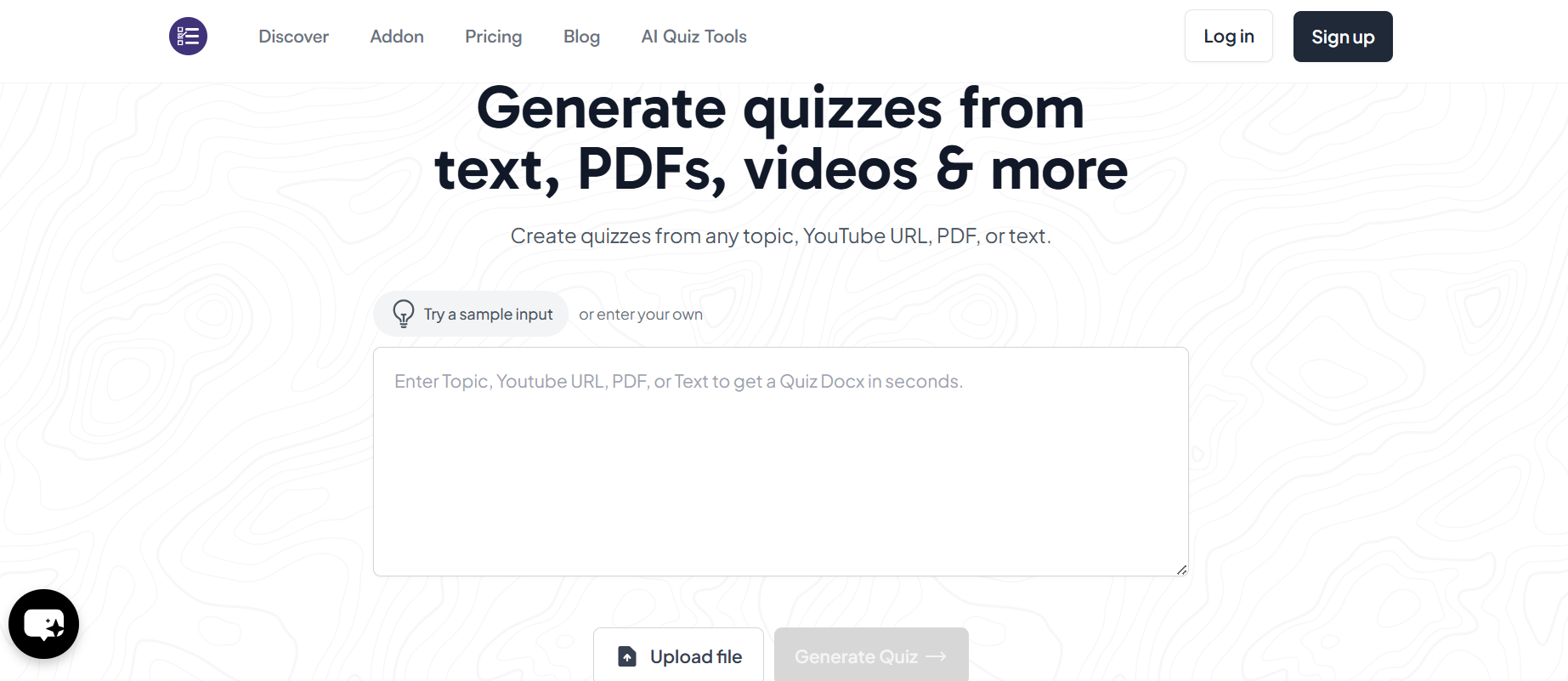
MagicForm helps by:
- Generating form questions automatically
- Writing clear consent text
- Structuring the form properly
Simple Steps
- Open MagicForm
- Describe the type of consent form you need
- Let MagicForm generate the form content
- Review and edit the form in Google Forms
- Share the form
Your Form will be generated in seconds!
Conclusion
Creating a consent form in Google Forms is simple and effective. By using clear language and required consent questions, you ensure users understand what they are agreeing to.
Whether you build it manually or use MagicForm to save time, the most important thing is clarity. Honesty matters the most. A well-made consent form builds trust. It improves response quality.
Also: Read How to Make Google Form Public.
FAQs
1. Can I create a consent form for free in Google Forms? Yes. Google Forms is completely free to use.
2. Can I edit the consent text later? Yes. You can edit it anytime, but it’s best to finalize it before sharing.
3. Can users submit without agreeing? No. If the consent question is marked as required.
4. Can I download consent responses? Yes. Responses can be downloaded using Google Sheets.
5. Is a checkbox better than multiple choice? Checkboxes are often clearer because users must actively agree.
6. Can MagicForm create consent forms automatically? Yes. MagicForm can generate consent form content quickly.