
Clearing Google Form Responses
Google Forms is one of the easiest tools for collecting information online.
In this guide, you will learn how to clear responses in Google Forms in a simple way. You will also understand when to clear responses.
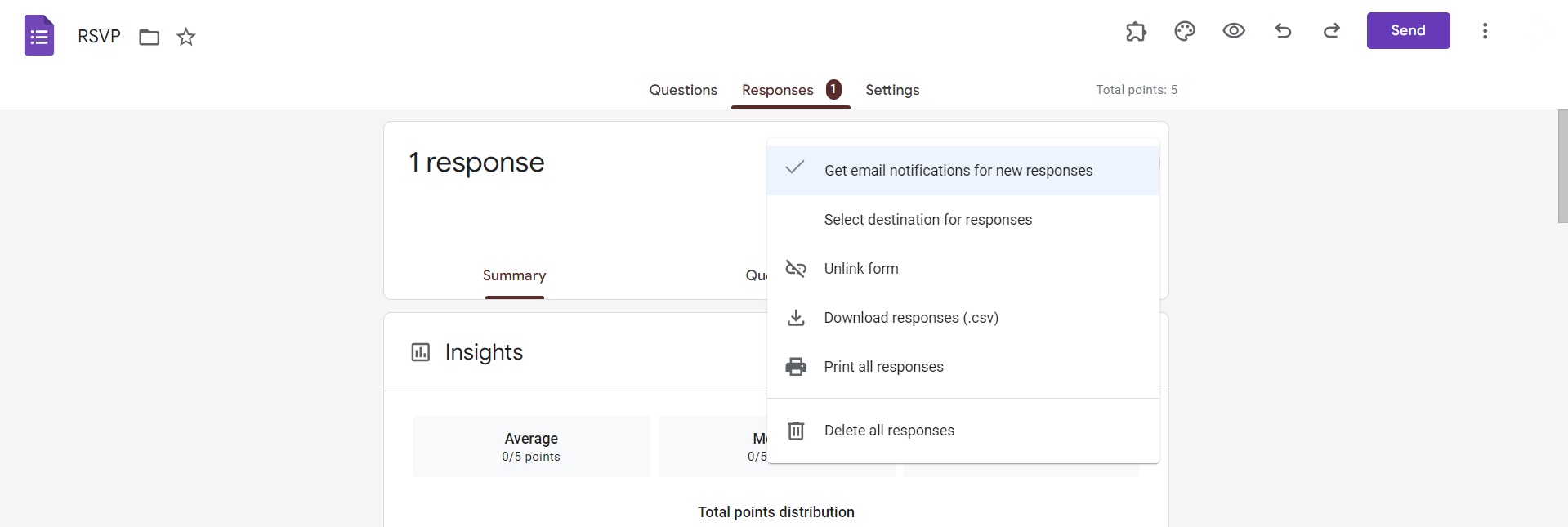
What Does Clearing Responses Mean in Google Forms?
Clearing responses in Google Forms means deleting all submitted answers while you keep the form unchanged.
When responses are cleared:
- All collected answers are removed
- Questions stay exactly the same
- The form link continues to work
- You can collect new responses again
Why Clearing Responses Is Useful?
Clearing responses helps you manage your forms much better.
It allows you to:
- Reuse a form for a new survey or an event
- Remove test responses before you share them publicly
- Reset a form for a new time period
- Keep your data clean
- Keep your data organized
- Avoid creating multiple duplicate forms
How Google Forms Stores Responses?
Google Forms stores responses in two main places.
- Responses tab
- Google Sheets
How to clear responses in Google Forms
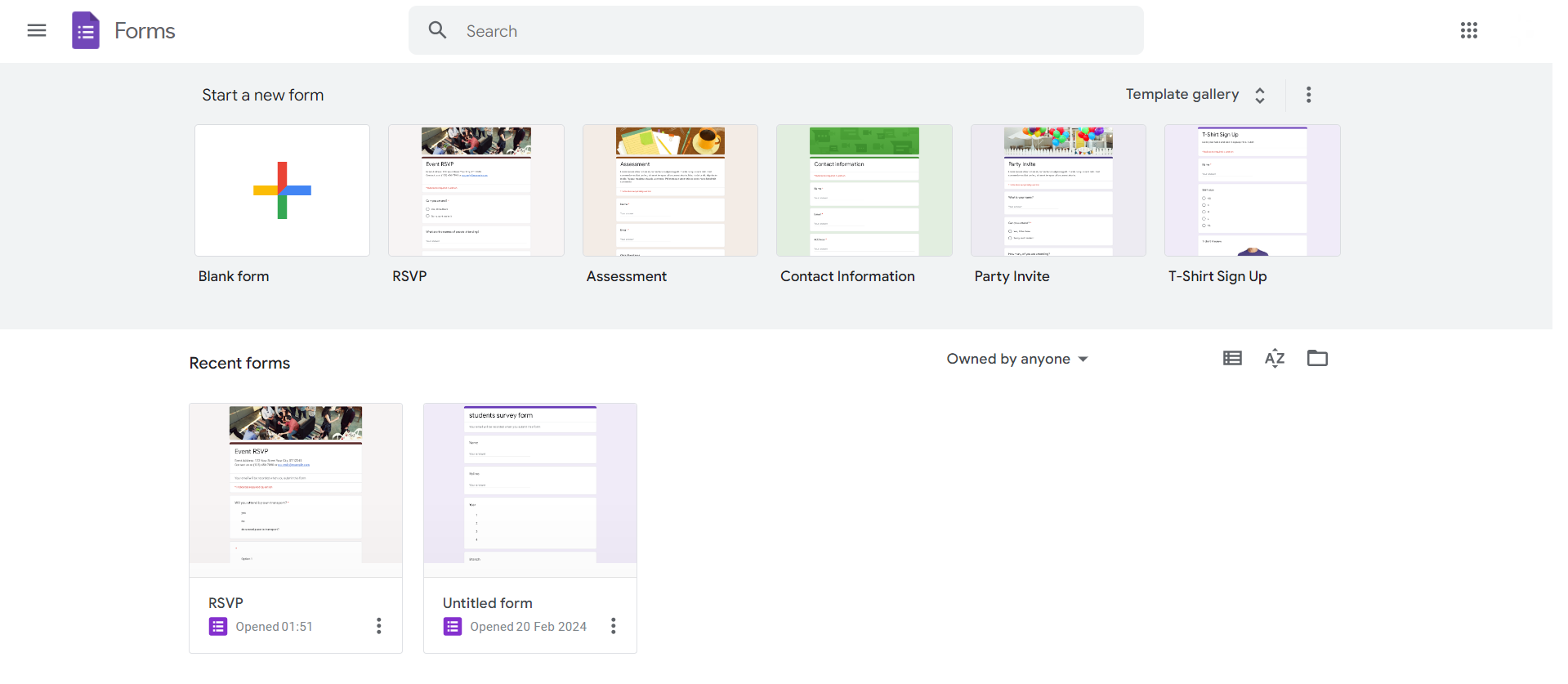
Step 1: Open Google Forms
Start by logging into your Google account and accessing Google Forms from the G Suite dashboard or by navigating directly to forms.google.com.
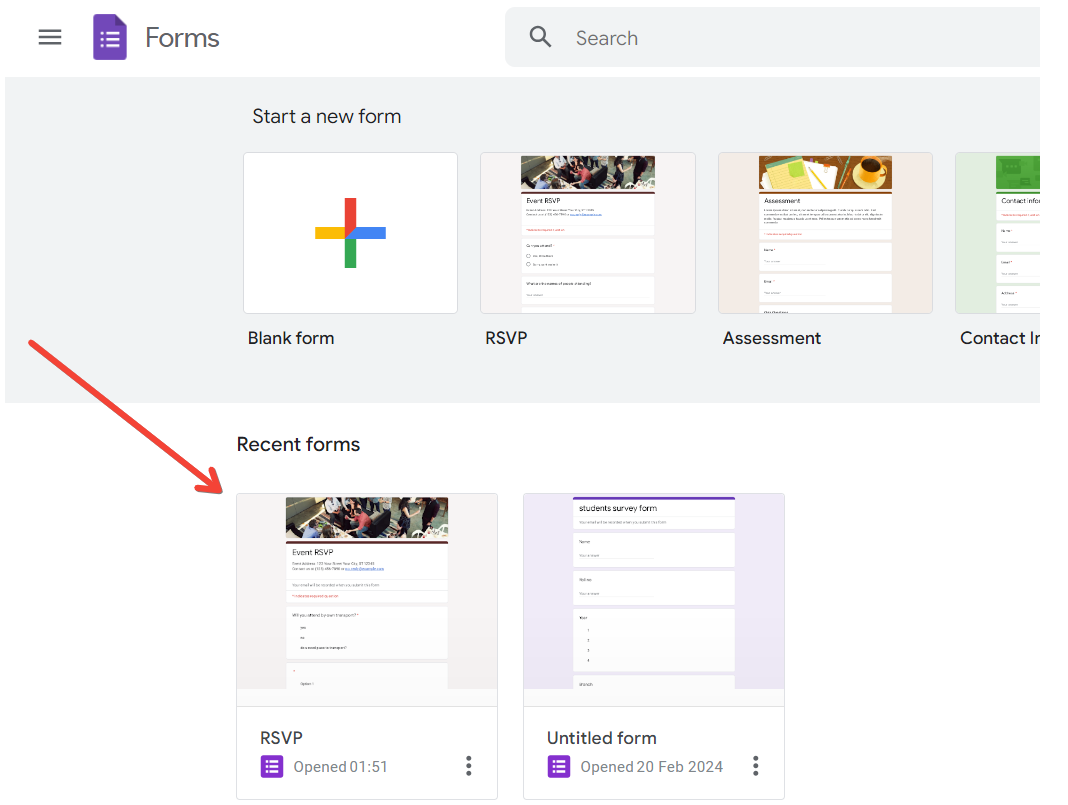
Step 2: Select the Form
Choose the form from which you want to clear responses. If you have multiple forms, ensure that you select the correct one.
Step 3: Access Form Settings
Click on the three vertical dots in the upper-right corner of the form's interface to open the menu. From the dropdown menu, select "Settings."

Step 4: Navigate to "Presentation" Settings
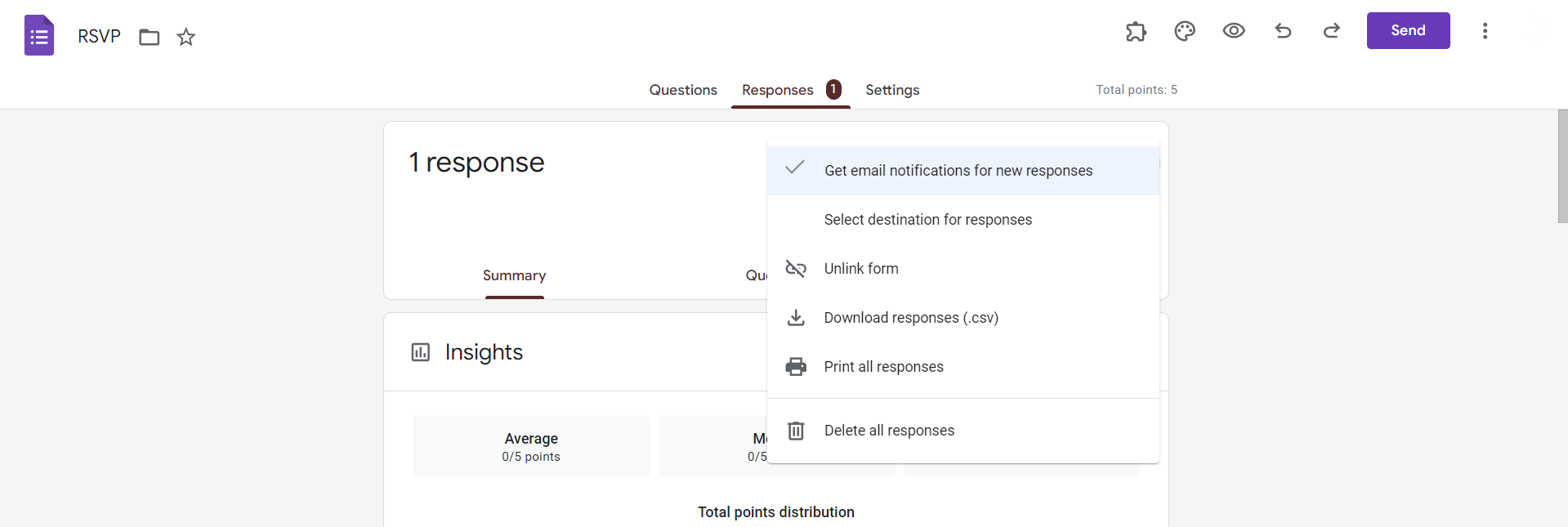
Within the Settings menu, locate and click on the "Presentation" tab. This tab contains options related to how responses are displayed and managed if the option is unavailable then click on the three dots in responses tab itself.
Step 5: Click "Delete All Responses"
Scroll down to find the "Responses" section within the Presentation settings. Under this section, click on the option labeled "Delete all responses."
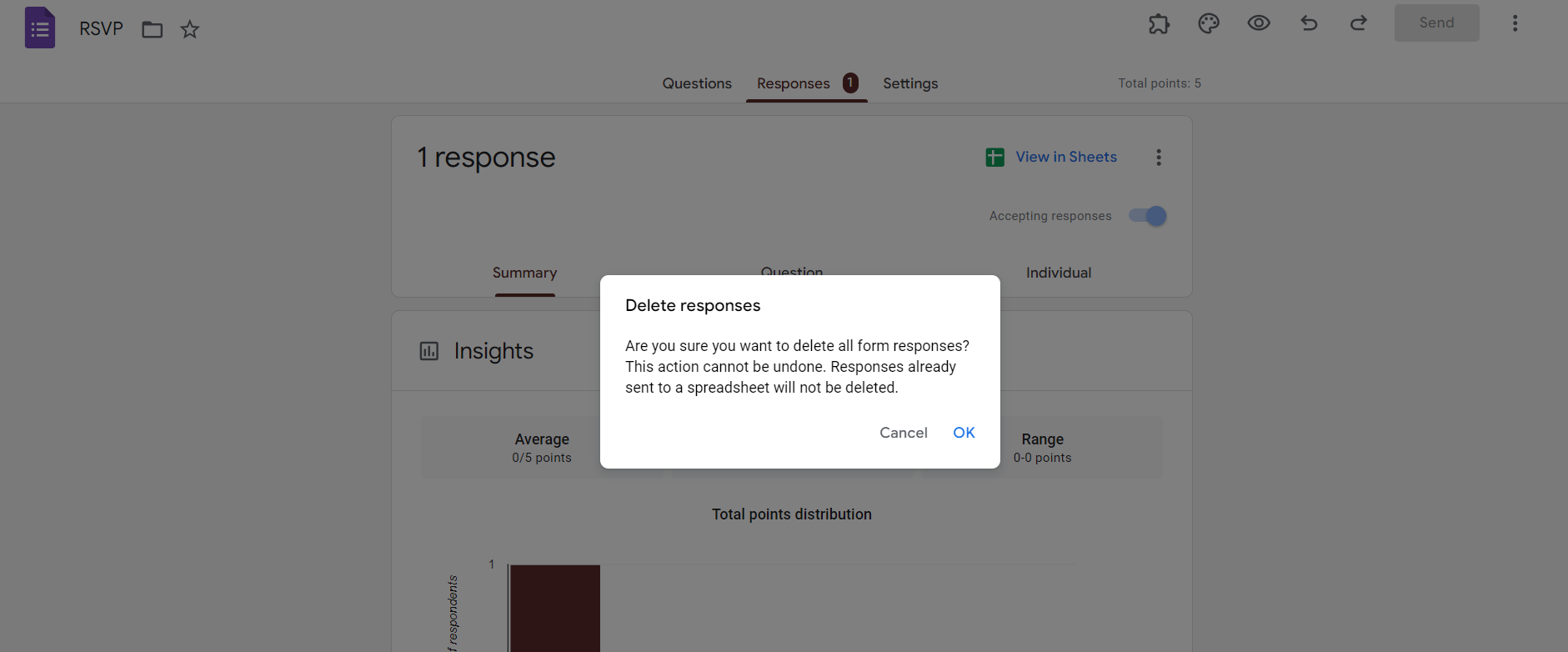
Step 6: Confirm Deletion
A confirmation dialog box will appear, asking you to confirm the deletion of all responses. Click "Delete" to proceed.
Clearing Responses When a Google Sheet Is Linked
- In the responses tab, click the Green Google Sheets icon
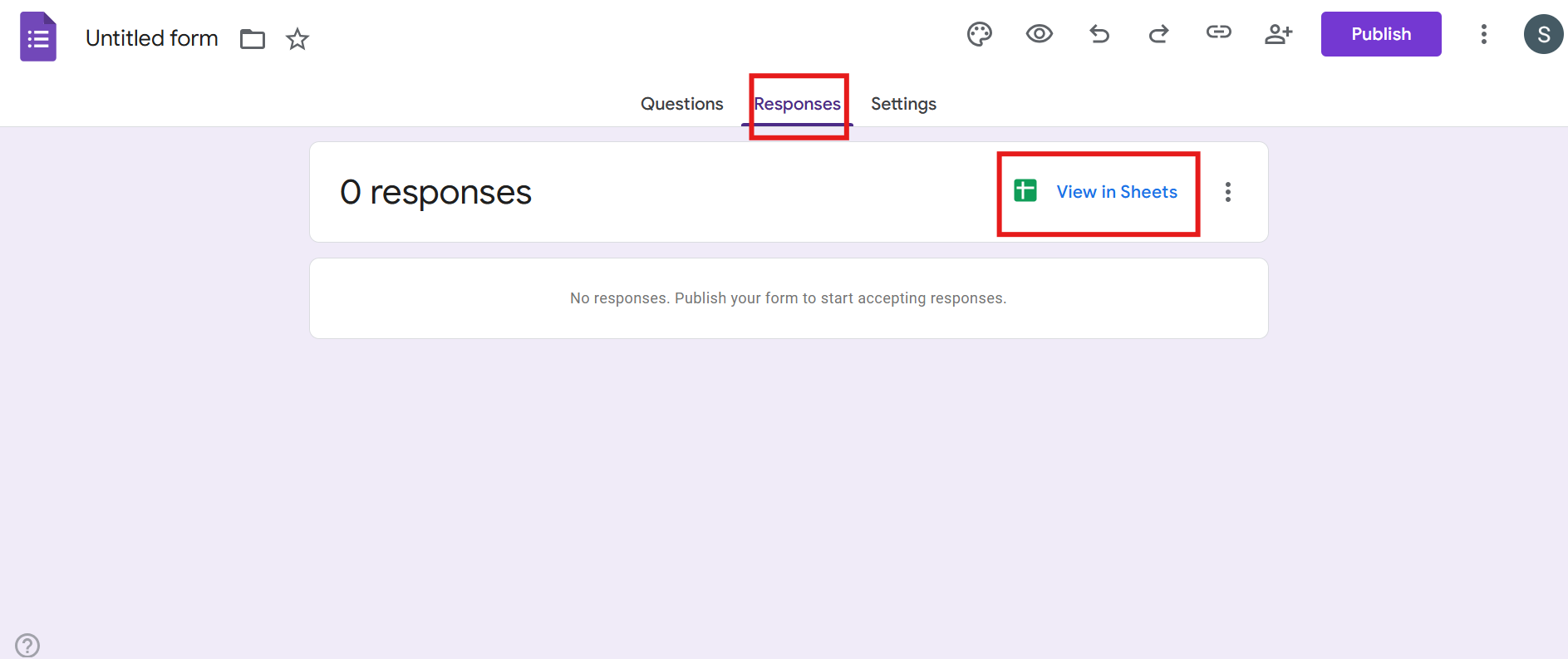
- The linked spreadsheet will open
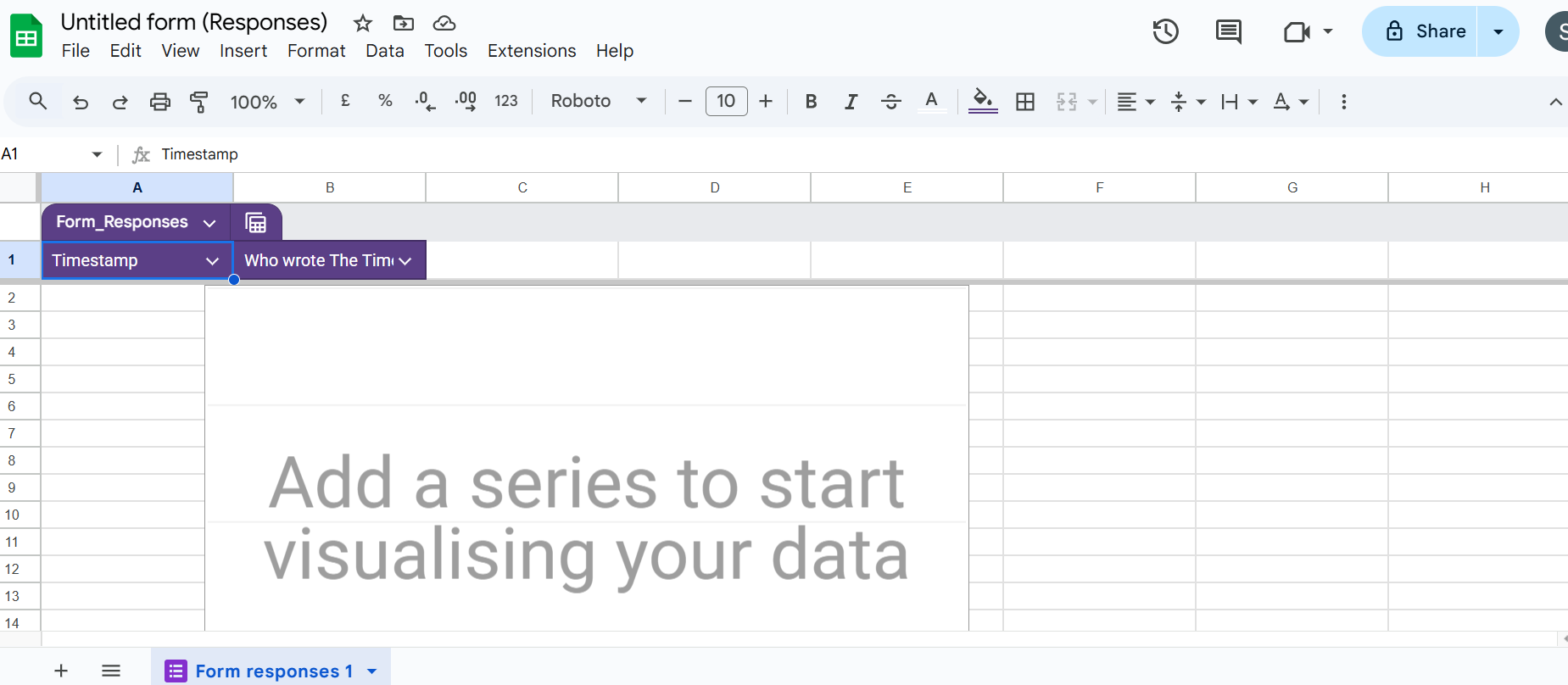
From here, you can delete the rows.
Difference Between Clearing Responses and Deleting a Form
Many users confuse these two actions.
Clearing responses:
- This only deletes the answers that are submitted
- Keeps the form active
- Allows reuse of the same form and the link
Deleting a form:
- It removes the entire form
- Deletes questions and settings
- Stops all future submissions
When Should You Avoid Clearing Responses?
You should avoid clearing responses if:
- The data is needed for reports or analysis
- Responses are required for the records
- You may need the information later
Creating Better Forms With MagicForm
Managing responses becomes easier when your form is well designed from the start. This is where MagicForm.app can help.
MagicForm is an AI-powered form builder that helps you create clear, structured forms quickly. Instead of manually planning every question, MagicForm generates form layouts based on your purpose. Well-structured questions lead to better responses. This makes analysis and response management smoother.
Conclusion
Learning how to clear responses in Google Forms is a useful skill for anyone who uses forms regularly.
The process is simple. But it should be done carefully because cleared responses cannot be recovered. Always check whether the data needs to be saved before deleting it. When used correctly, clearing responses helps keep your forms clean and ready for future use.
With better form design and MagicForm, managing responses becomes faster and more efficient.
Also: Read How to make a pie chart in Google Forms.
FAQs
Q1. Can I undo clearing responses in Google Forms?
No. Once responses are cleared, they cannot be recovered.
Q2. Will clearing responses delete my questions?
No. Only responses are deleted. The form structure stays the same.
Q3. Can people still submit responses after clearing?
Yes. The form continues to accept new responses normally.
Q4. What happens to charts after clearing responses?
Charts reset and update again when new responses come in.
Q5. Do linked Google Sheets clear automatically?
No. You must manually delete data from the spreadsheet if needed.
Q6. Is it better to clear responses or create a new form?
Clearing responses is better if you want to reuse the same form.
Q7. Can I clear responses on mobile?
Yes. You can clear responses using the Google Forms mobile interface.
Q8. How does MagicForm help with response management?
MagicForm helps create clearer forms, resulting in better data and easier response handling.