
How to Use Google Forms for Voting Polls
Google Forms is a simple tool for creating online voting polls. You don’t need technical skills for this.
In this guide, you’ll learn exactly how to create a voting poll on Google Forms. Let us get into it.
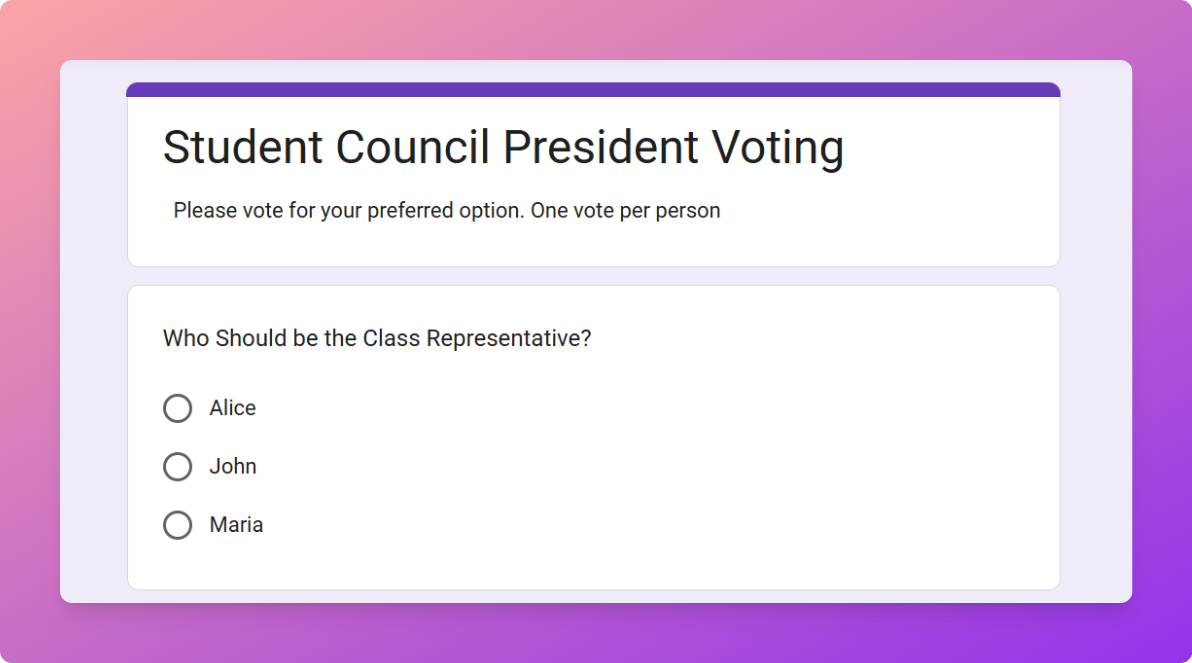
What Is a Voting Poll?
A Voting Poll is a form where people choose between options. This is to express their preference or opinion.
Voting polls are commonly used for:
- School or college elections
- Team decisions
- Event planning
- Fun polls in communities
- Workplace feedback
- Club or group voting
Why Use Google Forms for Voting?
Google Forms is popular for polls because it is:
- Free to use
- Easy to share
- Simple for voters
- Automatic in counting votes
- Accessible on any device
- Linked with Google Sheets for tracking
Method 1: Create a Simple Voting Poll
Steps:
- Go to forms.google.com

- Add a title
Example:
“Student Council President Voting”
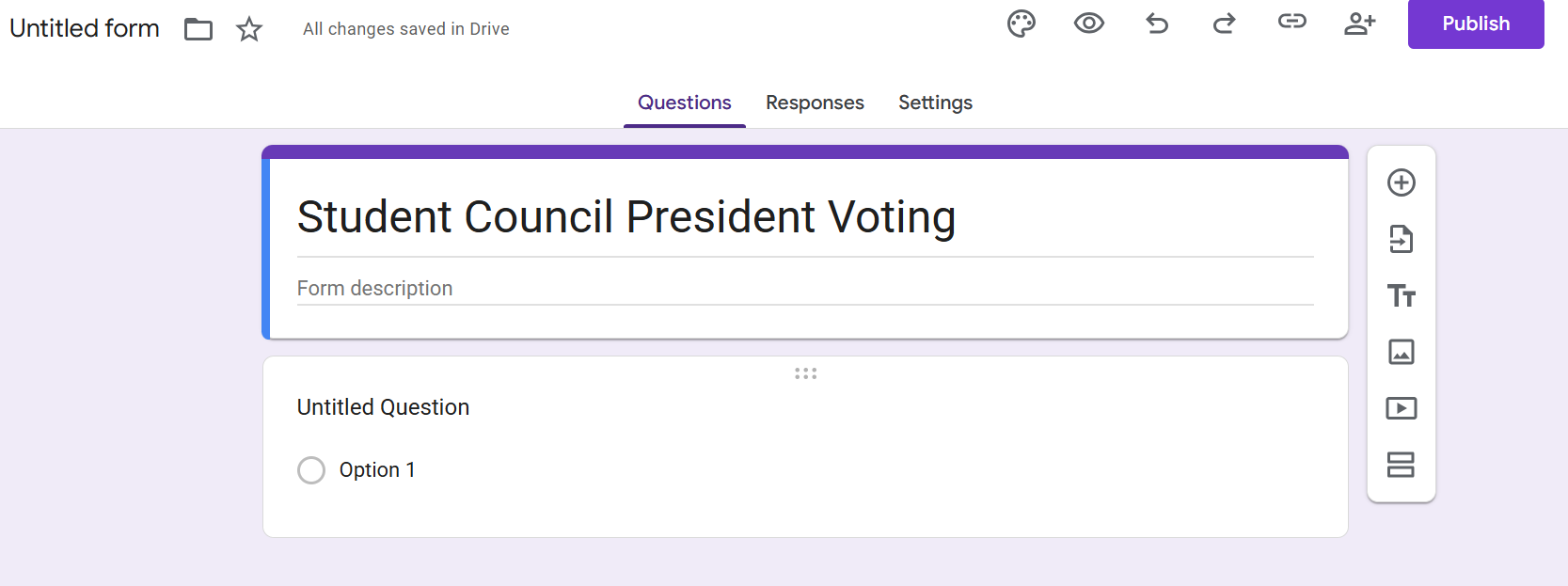
- Write a short description
Example:
“Please vote for your preferred option. One vote per person.”

- Enter your question
Example:
“Who should be the class representative?”
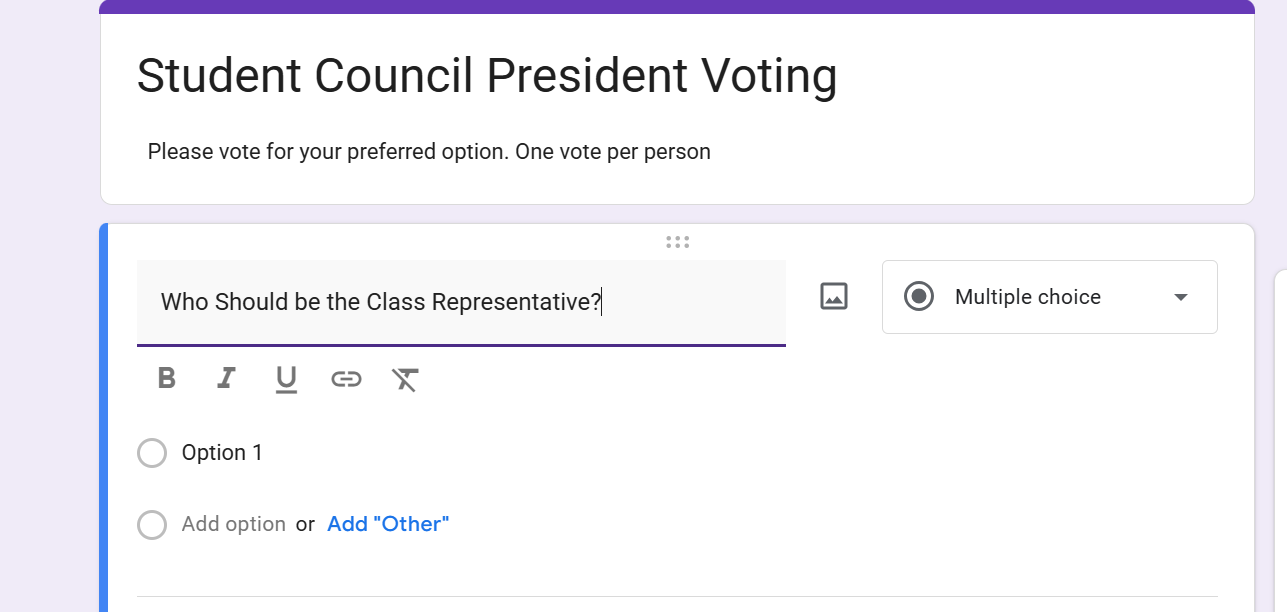
- Choose question type
Use Multiple Choice for single voting.
Use Checkboxes if multiple selections are allowed.

- Add voting options.
Example
Method 2: Limit to One Vote Per Person
Steps:
- Click Settings at the top

- Turn on Limit to 1 response
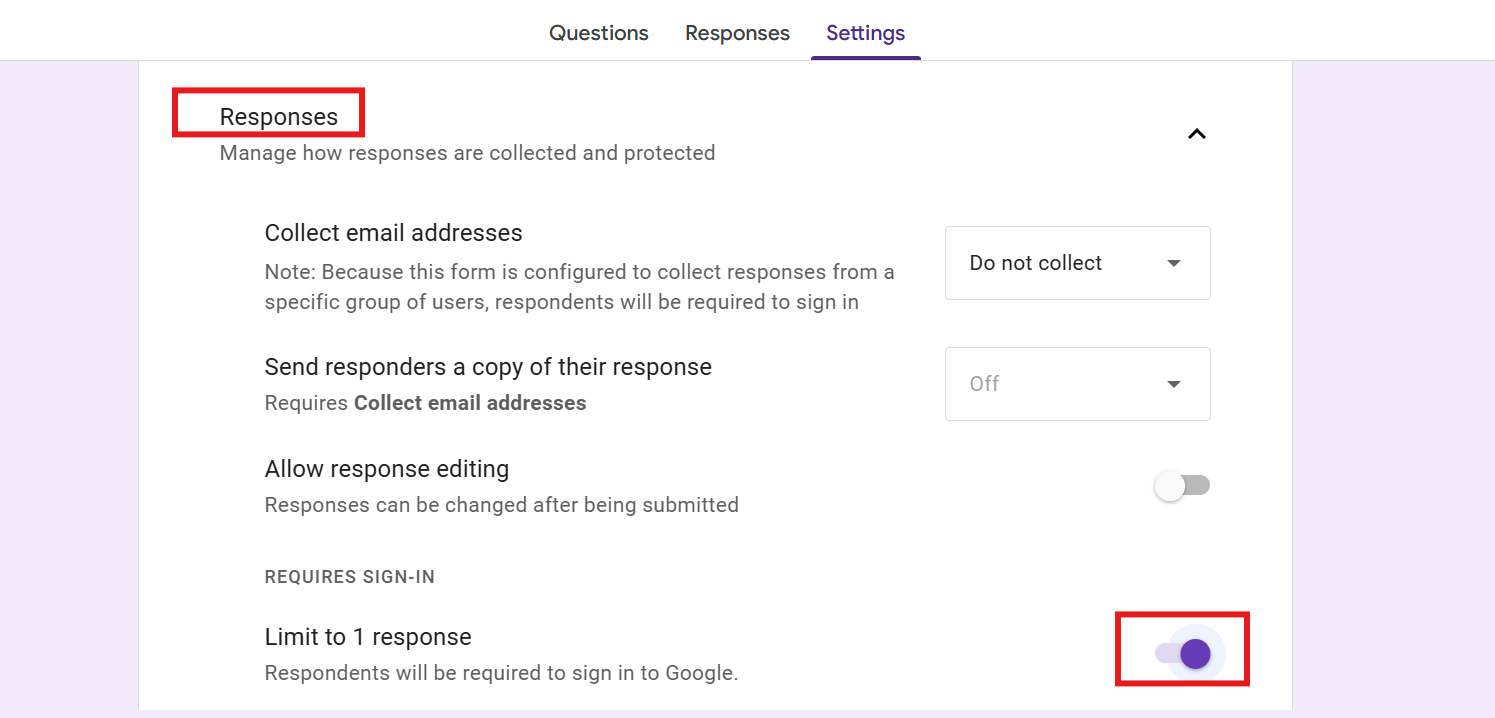
- Google will require a sign-in
Why does this matter?
- It prevents people from voting multiple times
- Each Google account gets one vote
Method 3: Anonymous Voting
If you want privacy:
- Do NOT collect email addresses
- Do NOT ask for names
- Turn off sign-in requirements
Method 4: Add Images to Voting Options
Images make polls more engaging.
Steps:
- Click the image icon beside options

- Upload a photo
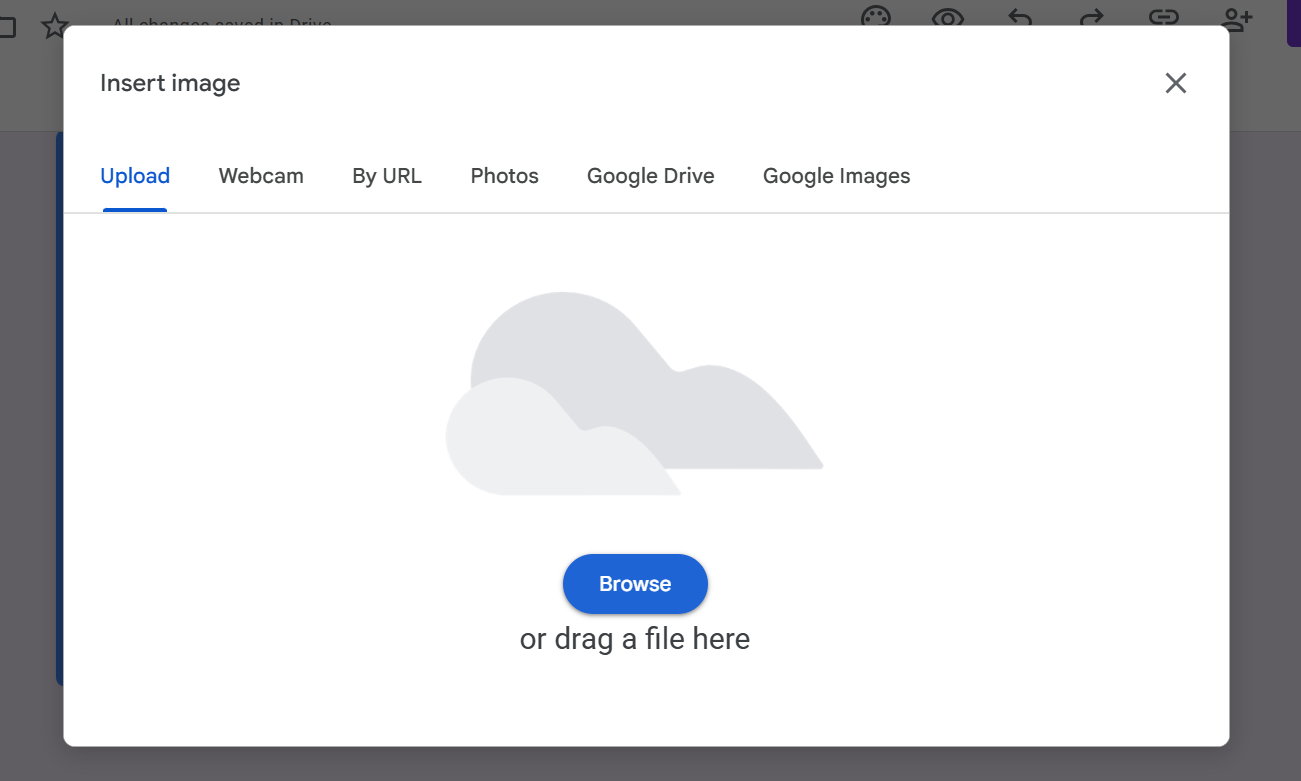
Add images for each choice.
Sharing Your Voting Poll
Once ready:
- Click Send
- Copy the link
- Share via WhatsApp, email, or social media
When Should You Close Your Poll?
Close voting when:
- Deadline is reached
- Enough votes have been collected
- The decision is made
Tips for a Fair Voting Poll
- Make questions clear
- Allow one vote per person
- Avoid too many options
- Set a deadline
- Test before sharing
Common Mistakes to Avoid
- Allowing multiple votes accidentally
- Confusing question wording
- Having too many options
- Forgetting to check results
- Sharing the wrong link
Creating Polls Faster with MagicForm
If writing questions and setting up polls takes time, MagicForm.app can help.
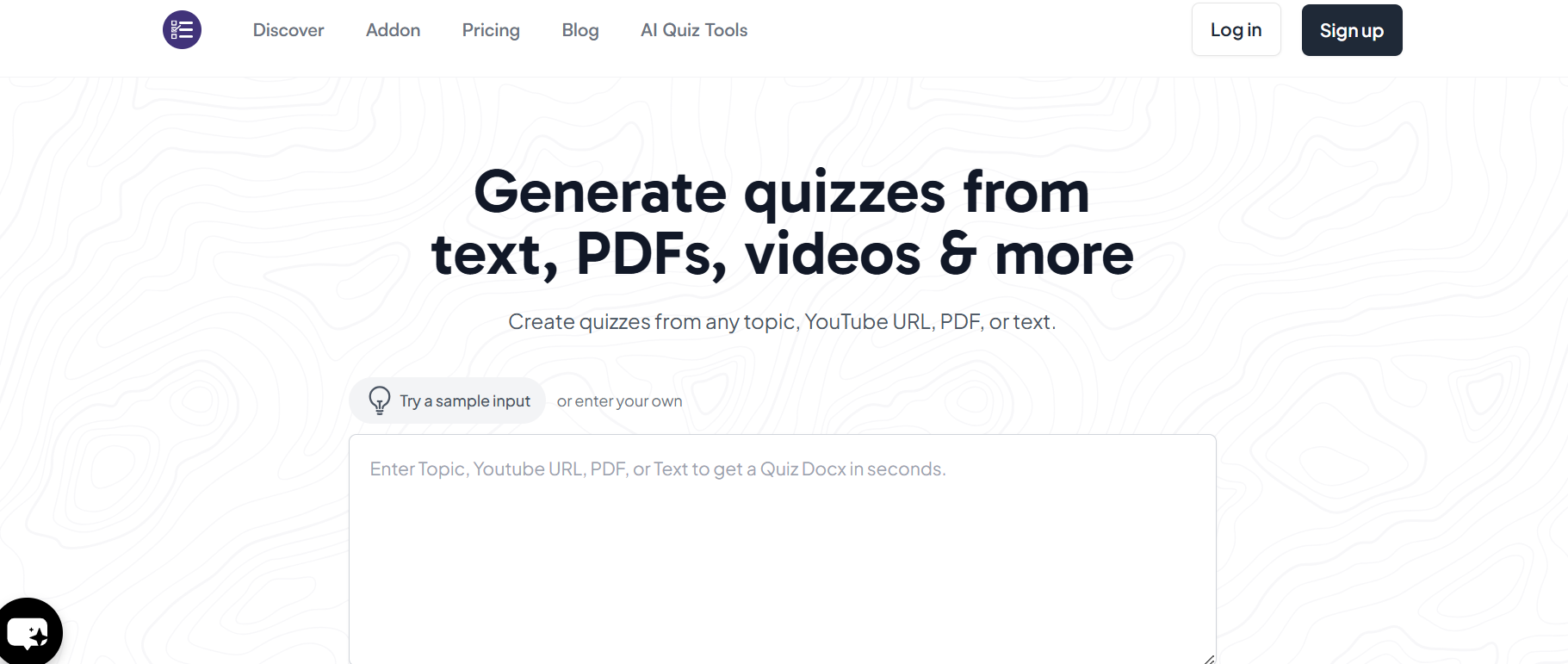
MagicForm is an AI-powered quiz maker tool. It generates structured forms and poll questions quickly. You enter your topic. Our AI suggests ready-to-use questions.
You can then copy these into Google Forms easily. This is helpful for teachers, teams, and creators who make polls often.
MagicForm reduces manual efforts. It speeds up your entire process.
Conclusion
Creating a voting poll on Google Forms is quick and effective. With the right setup, you can see results instantly.
Whether it’s a serious election or a fun community poll, Google Forms provides all the basics you need. Plan your poll, test it, and share it with confidence.
Tools like MagicForm can make poll creation even faster, helping you focus on decisions rather than setup.
FAQs
Q1. Can people vote more than once in Google Forms?
Yes. They can if you don’t apply any restrictions. To prevent duplicate voting, turn on “Limit to 1 response” in the settings. This requires voters to sign in with a Google account and ensures each account can vote only once.
Q2. Can I make my voting poll anonymous?
Yes. Google Forms allows anonymous polls. Simply avoid collecting email addresses and do not ask for personal details like names. This is useful when you want honest opinions without revealing voter identity.
Q3. Can I see voting results in real time?
Yes. Results update automatically as votes are submitted. You can view charts and summaries in the Responses tab. If you link to Google Sheets, you can also see each individual vote live.
Q4. Can I change poll options after sharing the form?
Yes. You can edit questions or options even after sharing. However, changing options after people have voted can affect fairness and result accuracy, so it’s best to finalize choices before sending.
Q5. Can I close voting whenever I want?
Yes. You can stop collecting votes anytime from the Responses section. Once closed, people opening the form will see a message that voting is no longer available. You can reopen it if needed.
Q6. How does MagicForm help with voting polls?
MagicForm helps you create structured poll questions faster using AI. Instead of writing everything from scratch, you get ready-made suggestions that can be used in Google Forms. This saves time when creating multiple polls.