
Create a Survey in Google Forms
Google Forms helps you design surveys quickly without any technical skills. It is free and easy to use.
In this guide, you will learn how to create a survey in Google Forms step by step. Let us get started.
What Is a Survey?
A Survey is a set of questions designed to collect information from people.
Surveys can be used for:
- Customer feedback
- Student evaluations
- Market research
- Event planning
- Internal team feedback
Why Use Google Forms for Surveys?
Google Forms is a popular choice for surveys because it is free and easy to access.
Google Forms is useful because:
- It is beginner-friendly
- Responses are collected automatically
- Charts are generated instantly
- Summaries are generated instantly
- It works on mobile and on desktop
- You can link responses to Google Sheets
Planning Your Survey Before Creating It
You need to make sure to plan your survey before you create it.
For this, you need to think about:
- Who your audience is
- What information do you want to collect
- How many questions do you really need
- What type of answers do you want
Method 1: Create a Survey Using a Blank Google Form
This is the most common way to create a survey.
For this:
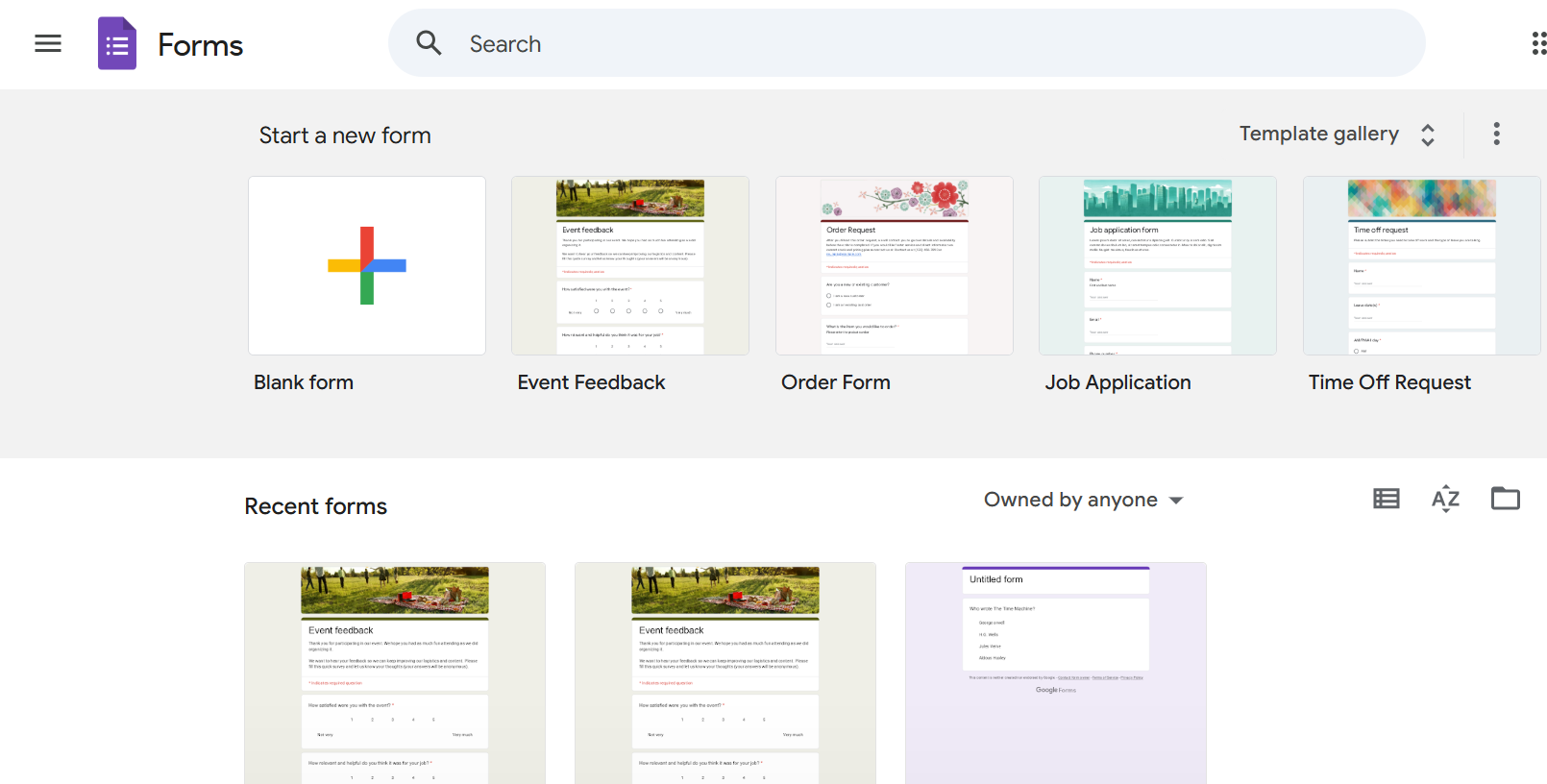
- Open your web browser and go to Google Forms
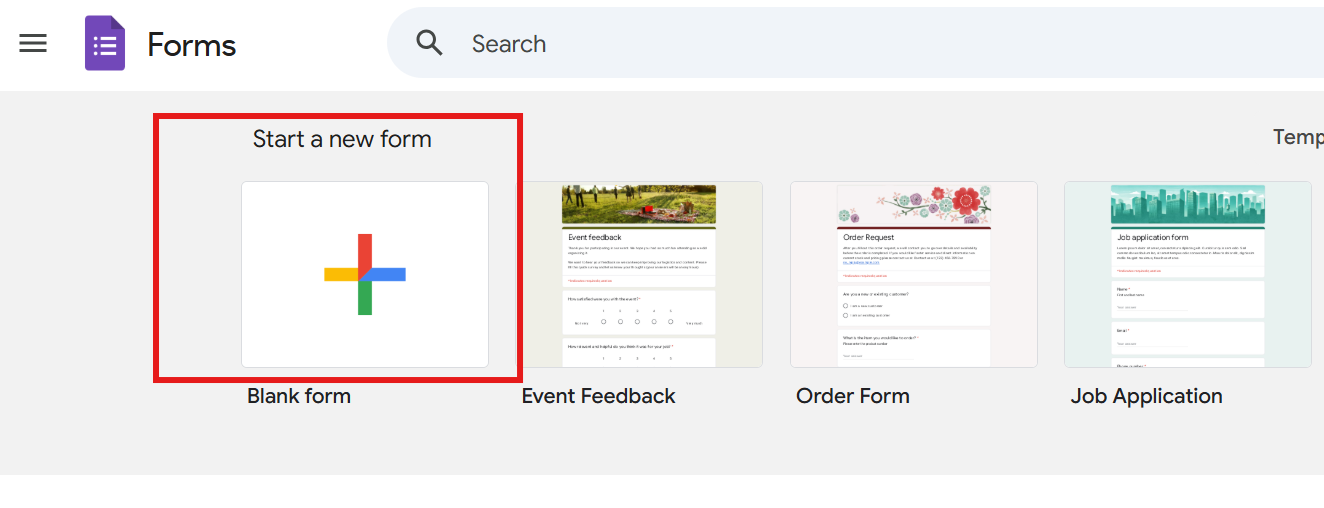
- Click on the plus icon
- Enter a clear title for your survey

- Add a short description (explaining the purpose of the survey)

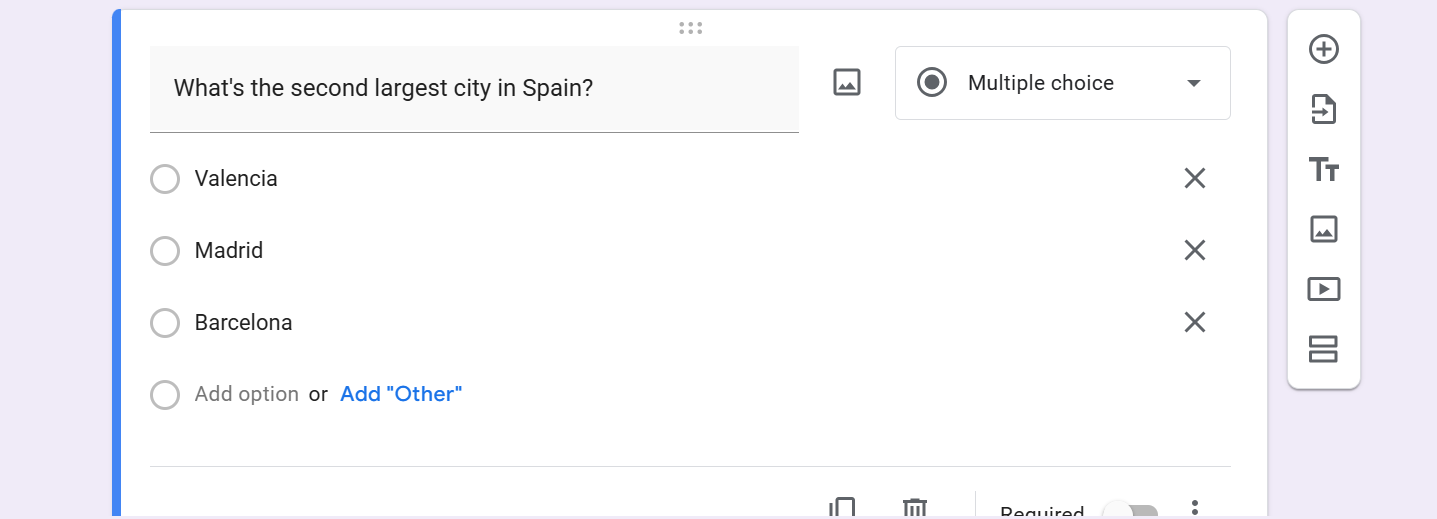
- Enter questions and options
Method 2: Create a Survey Using a Template
Google Forms also provides ready-made templates. In this way, you can save time.
For this:
- Open Google Forms
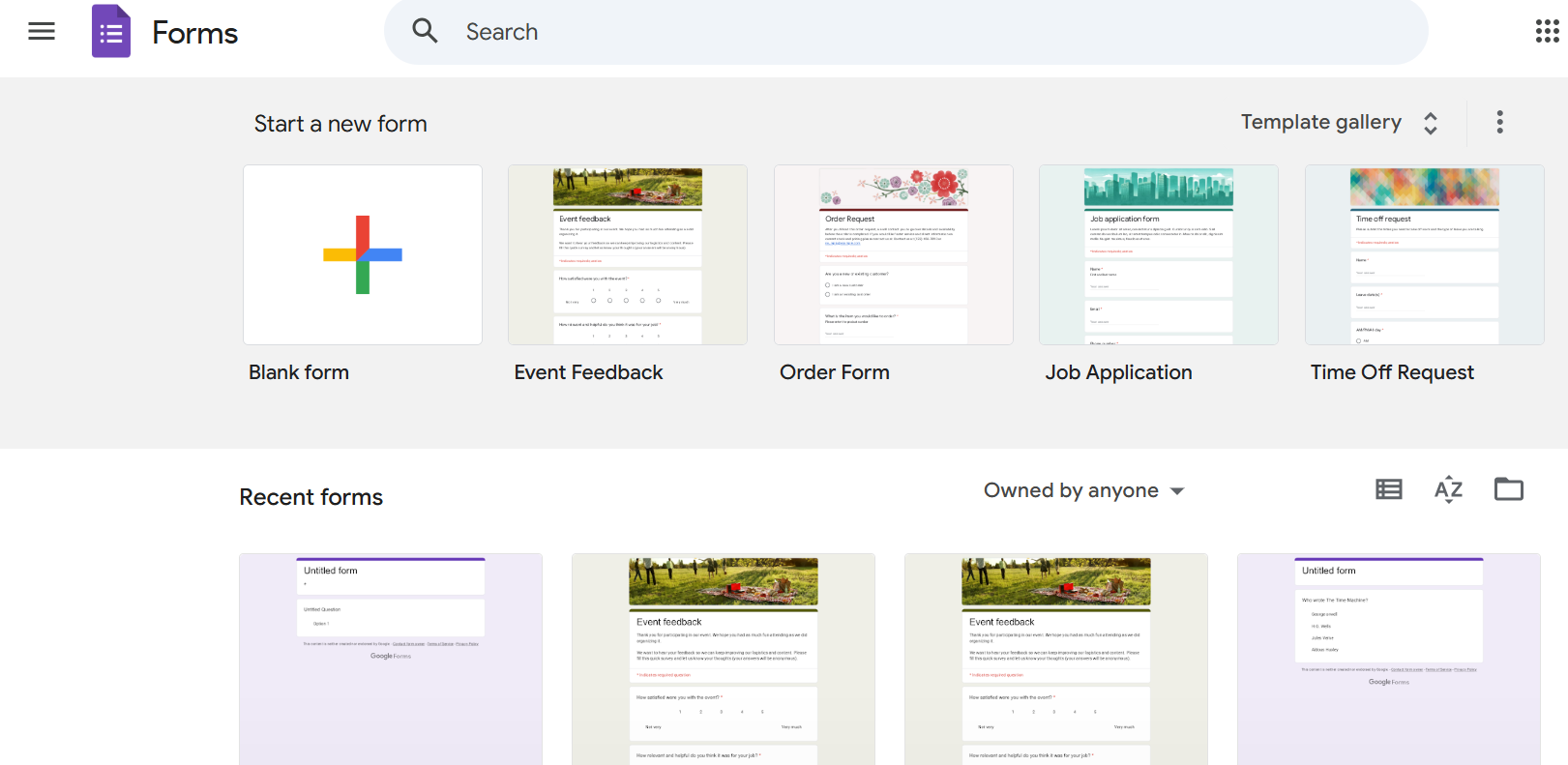
- Choose a Template
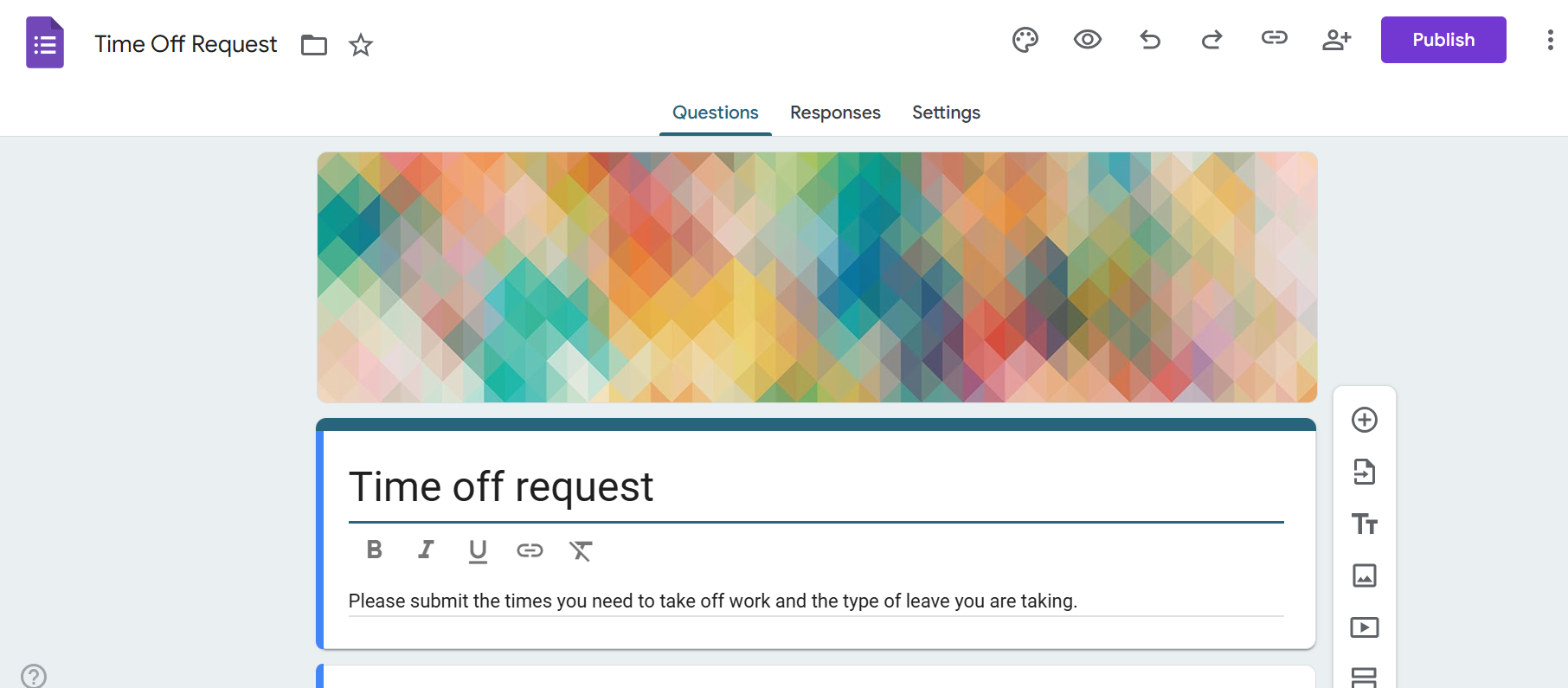
- Edit the title and the rest
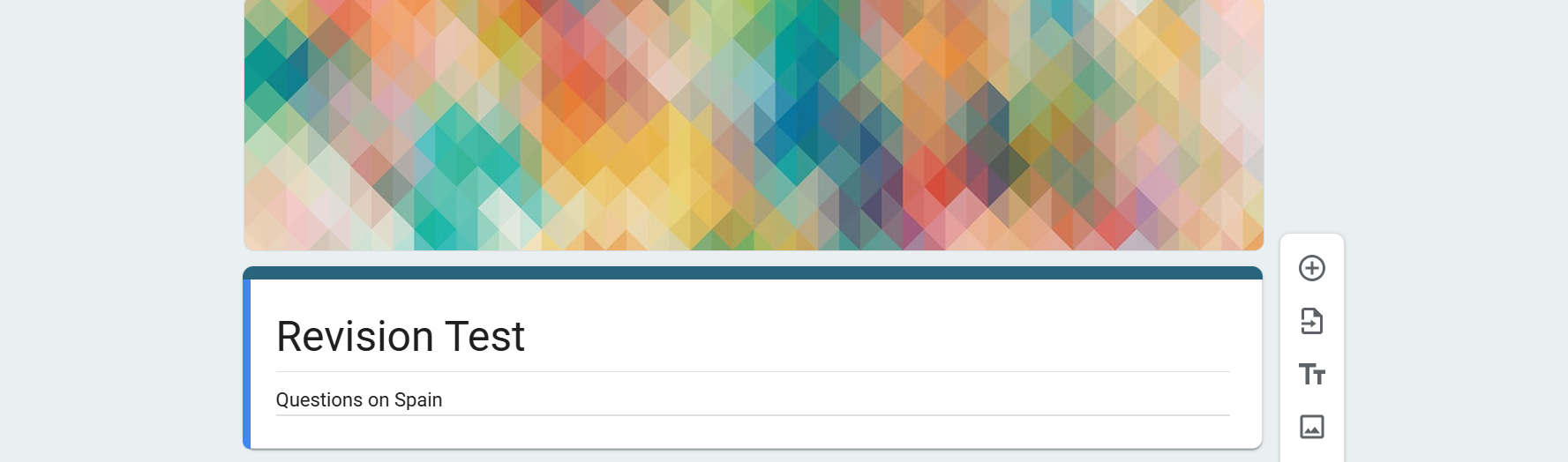
Creating a survey starts with building a form. If you need a quick refresher, check out our guide on how to make a Google Form.
Choosing the Right Question Types
- Short answer questions - good for names and brief responses
- Paragraph questions - work well for detailed feedback
- MCQs - ideal when respondents need to select one option
Customizing Your Survey Appearance
Google Forms allows basic customization.
For this:
Click on the palette icon.
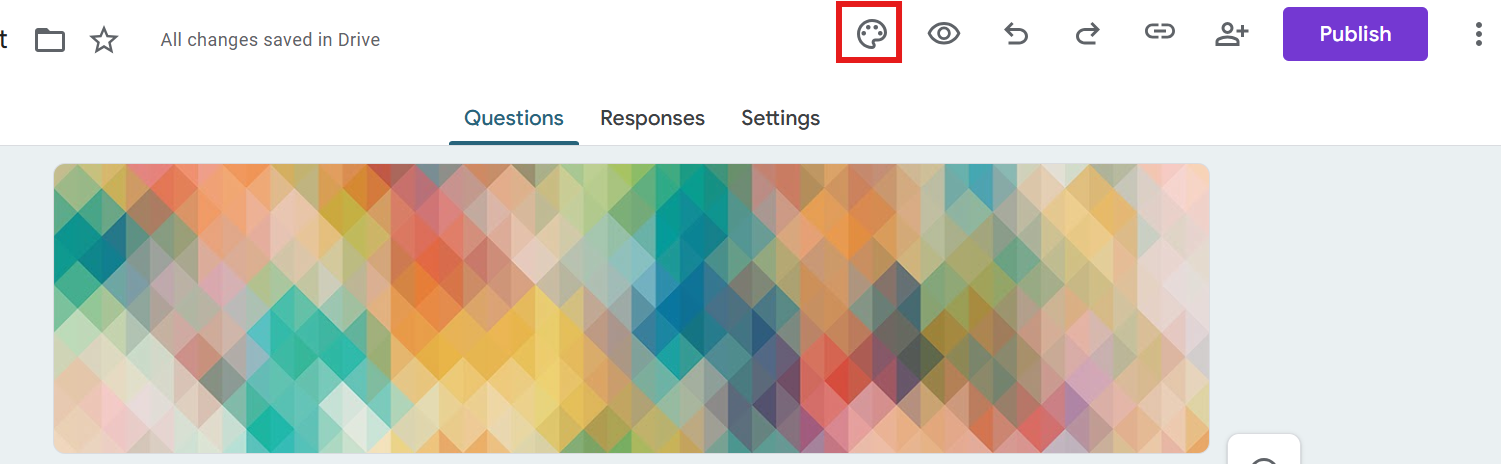
It changes colors, fonts, or adds a header image.
Previewing Your Survey
It is important to preview your survey before you share it.
For this:
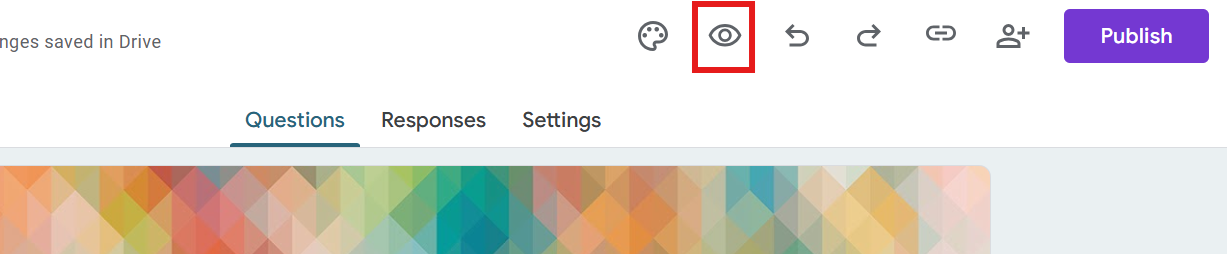
Click on the eye icon at the top.
Tips for Creating an Effective Survey
- Keep questions clear
- Keep questions simple
- Avoid asking too many questions
- Use consistent question formats
- Test your survey before sharing
- Respect the respondent time
Creating Surveys Faster With MagicForm
While Google Forms is easy to use, writing survey questions and structuring forms can still take time. MagicForm is an AI-powered quiz maker that helps you create surveys faster. This is done by generating well-structured questions. All this is based on your topic.
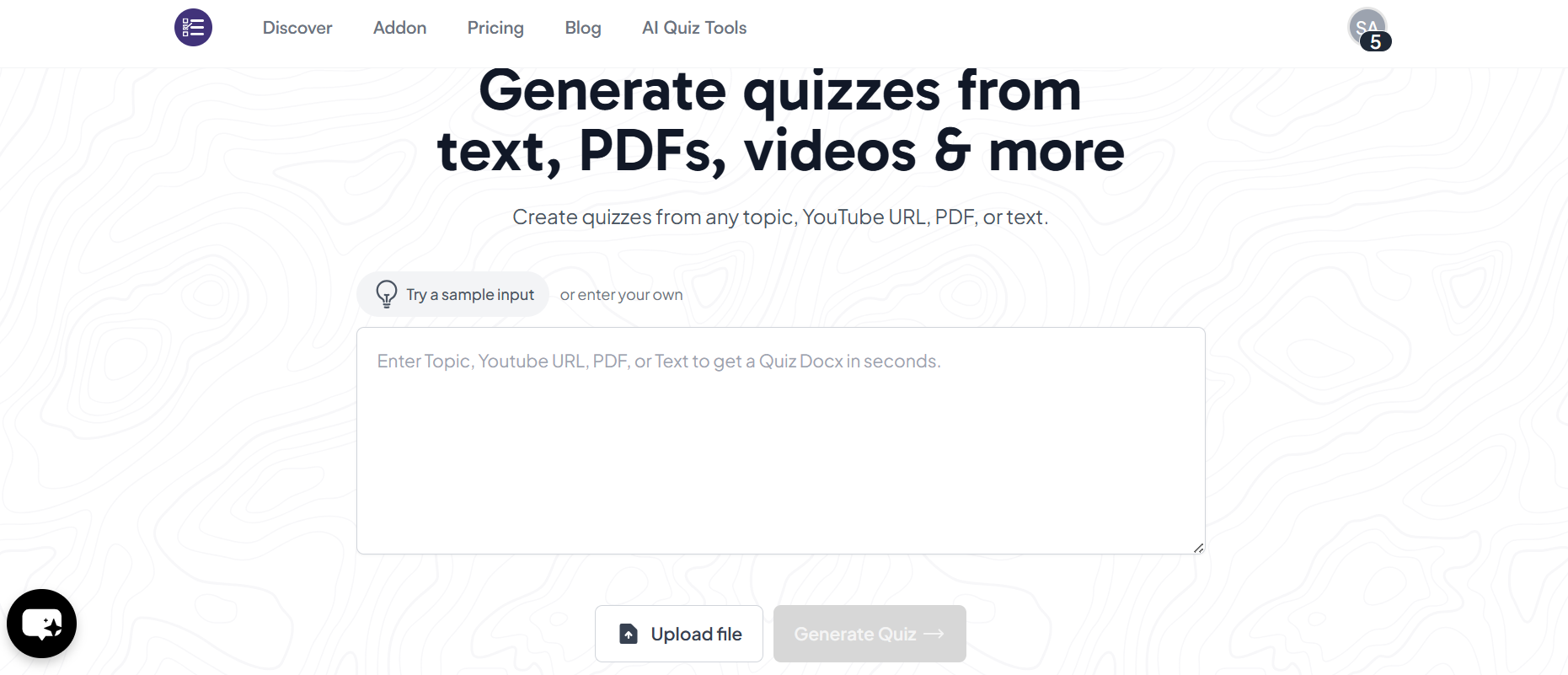
MagicForm helps you save time and reduces your manual work. It helps you create professional surveys quickly. This makes the entire survey creation process smoother. It also makes it more efficient.
Conclusion
Learning how to create a survey in Google Forms is a valuable skill. It is for collecting information and feedback. With its simple interface and powerful features, Google Forms makes survey creation accessible to everyone.
MagicForm further simplifies the process. You get your form creation done, instantly!
Also: Read How to change permissions on Google Forms.
FAQs
Q1. Is Google Forms free to use for surveys?
Yes. Google Forms is completely free with a Google account.
Q2. Can I create surveys on mobile devices?
Yes. Google Forms works on both mobile and desktop browsers.
Q3. How many responses can Google Forms handle?
Google Forms can handle large numbers of responses without issues.
Q4. Can I edit a survey after sharing it?
Yes. You can edit questions even after sharing the form.
Q5. Can I stop responses once my survey is complete?
Yes. You can turn off response collection anytime.
Q6. Does MagicForm work with Google Forms?
MagicForm helps generate survey questions that can be used directly in Google Forms.
Q7. Can I make a survey anonymous in Google Forms?
Yes. Google Forms does not collect names or email addresses unless you enable that option.
Q8. Can I reuse a survey for another purpose?
Yes. You can make a copy of your form and edit the questions for a new survey.
Q9. Can I limit responses to one per person?
Yes. You can restrict responses by enabling the “Limit to 1 response” option in settings.
Q10. Is Google Forms suitable for professional surveys?
Yes. Google Forms is widely used for professional, academic, and business surveys.Step 1: Access Google Forms