
A Simple Guide to Matching Questions in Google Forms
Matching questions are a great way to test understanding, memory, and logical thinking.
In this guide, you will learn how to do matching on Google Forms step by step. Let us begin.
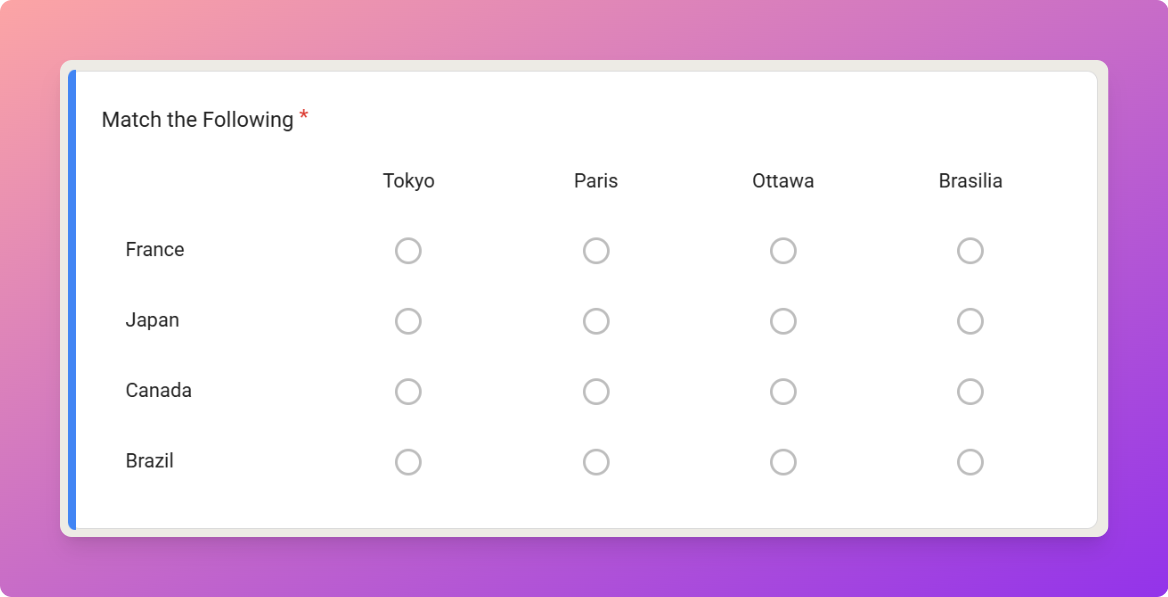
What Is a Matching Question?
A Matching Question asks respondents to connect related items from two lists. One list contains prompts. The other contains possible matches.
For example:
- Countries and capitals
- Words and meanings
- Terms and definitions
- People and achievements
- Questions and answers
Why Use Google Forms for Matching Questions?
Google Forms is popular for quizzes and assessments. This is because it is simple and accessible.
Google Forms is helpful because:
- It is free to use
- It supports auto-grading
- Responses are collected automatically
- It works on mobile and desktop
- You can link data to Google Sheets
- It allows quiz mode with answer keys
Planning Your Matching Questions
Clear planning makes your form easier.
Think about:
- What topic are you testing
- How many pairs do you need
- Whether answers should be reused
- If you want auto-grading
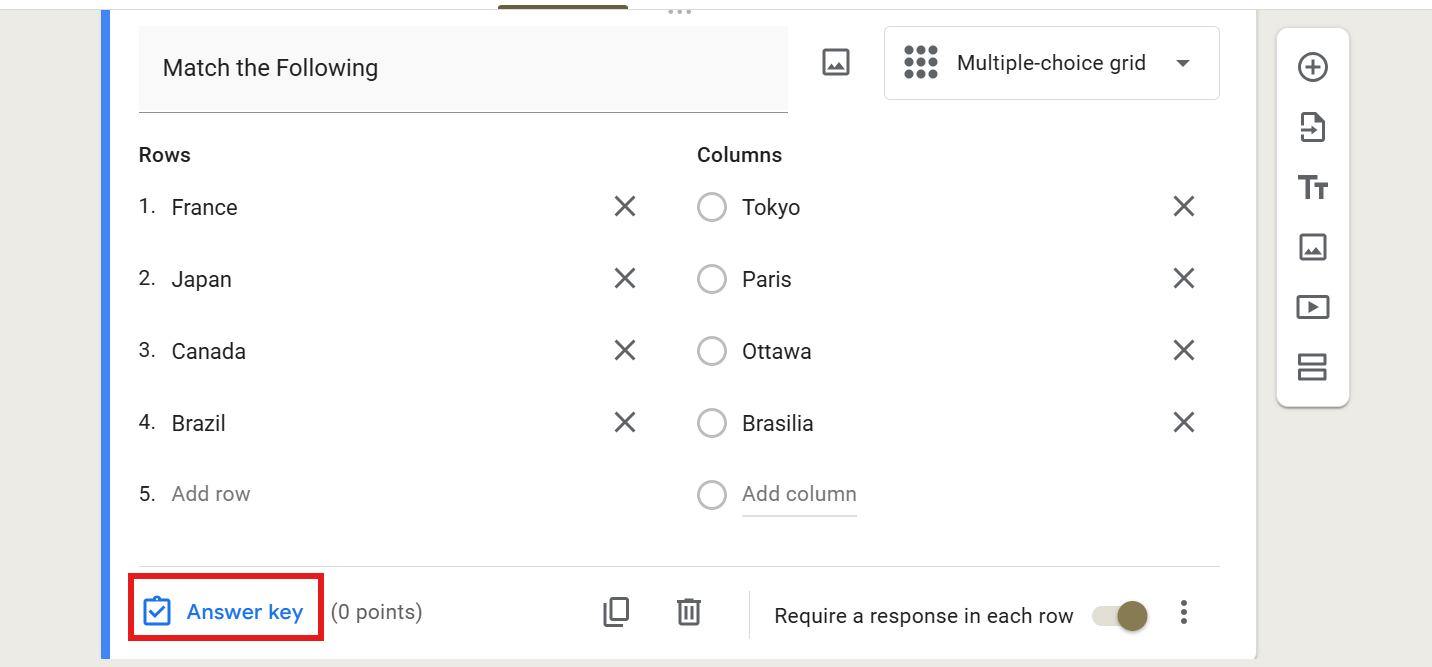
Method 1: Create a Matching Using a Multiple Choice Grid
For this:
- Open Google Forms
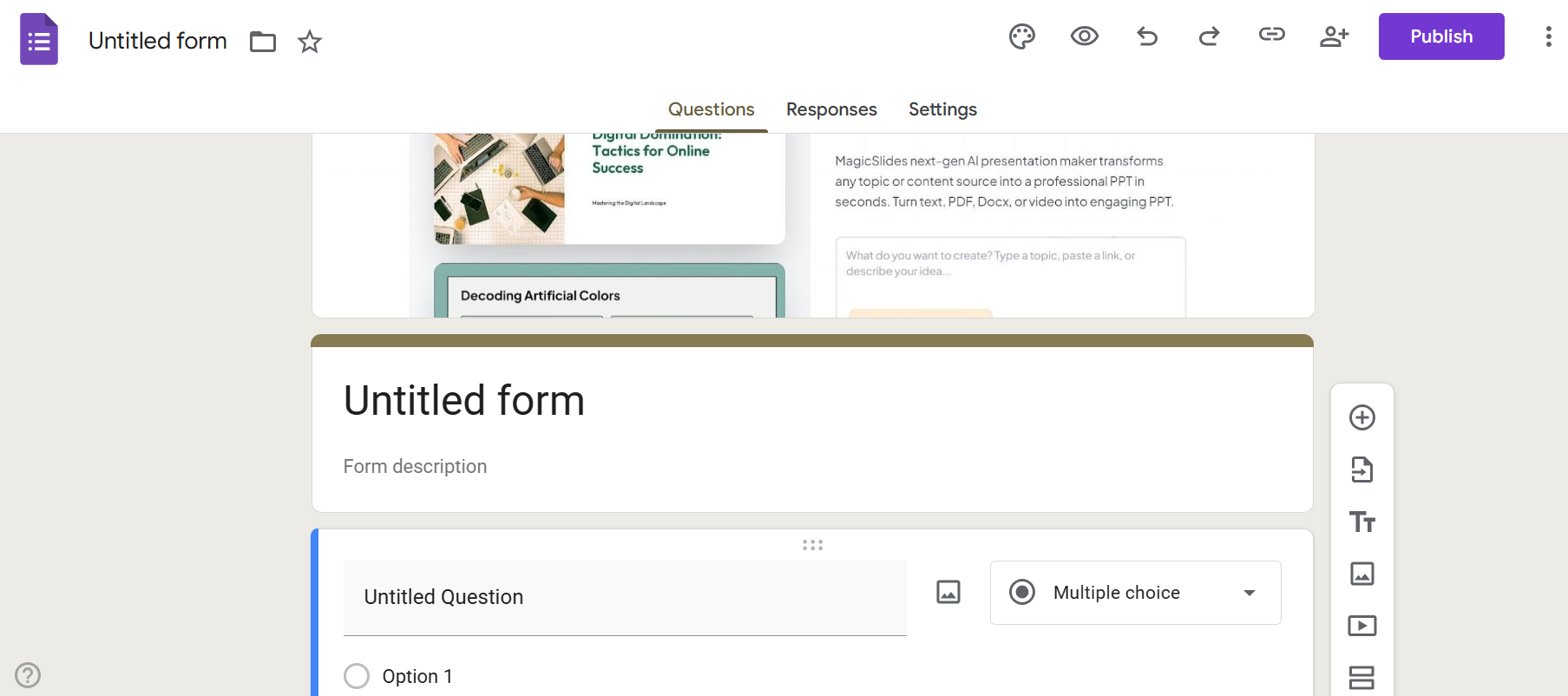
- Add a title and description
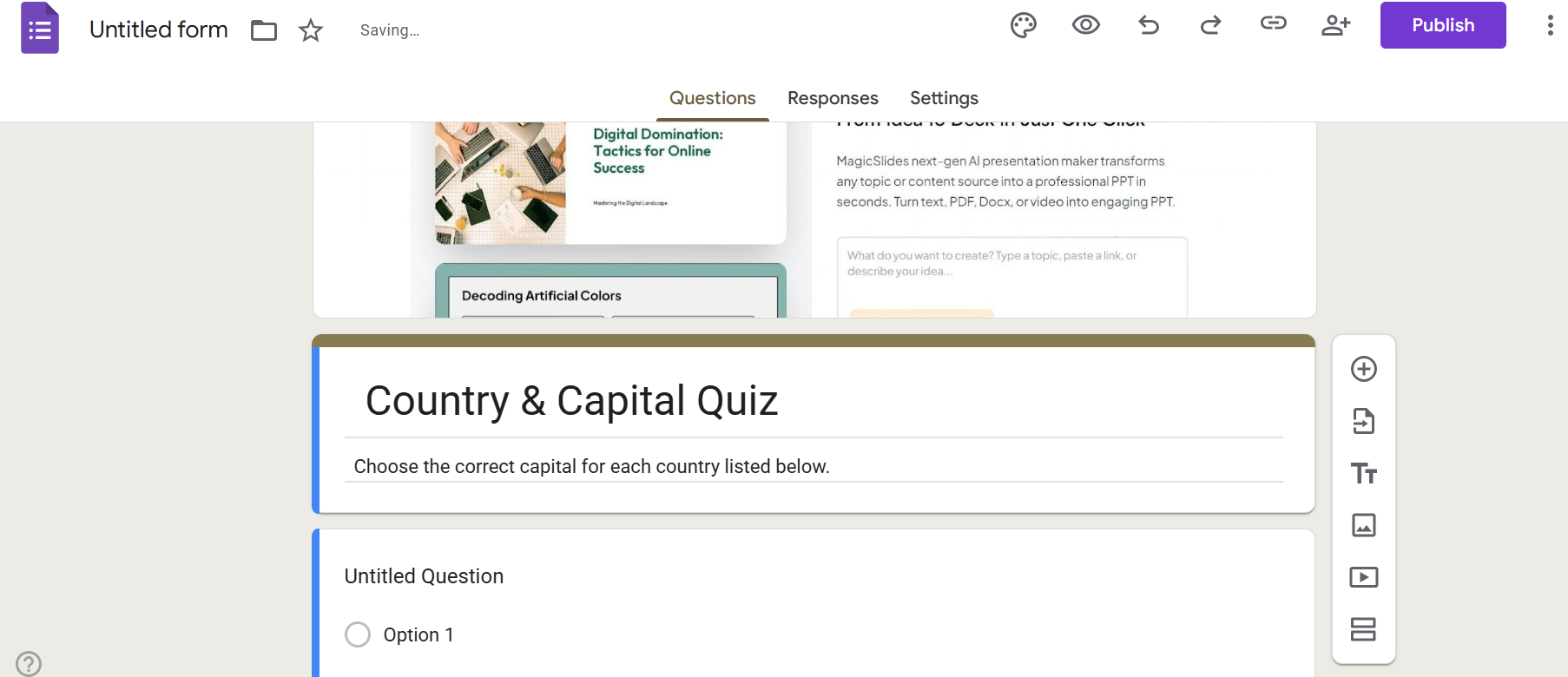
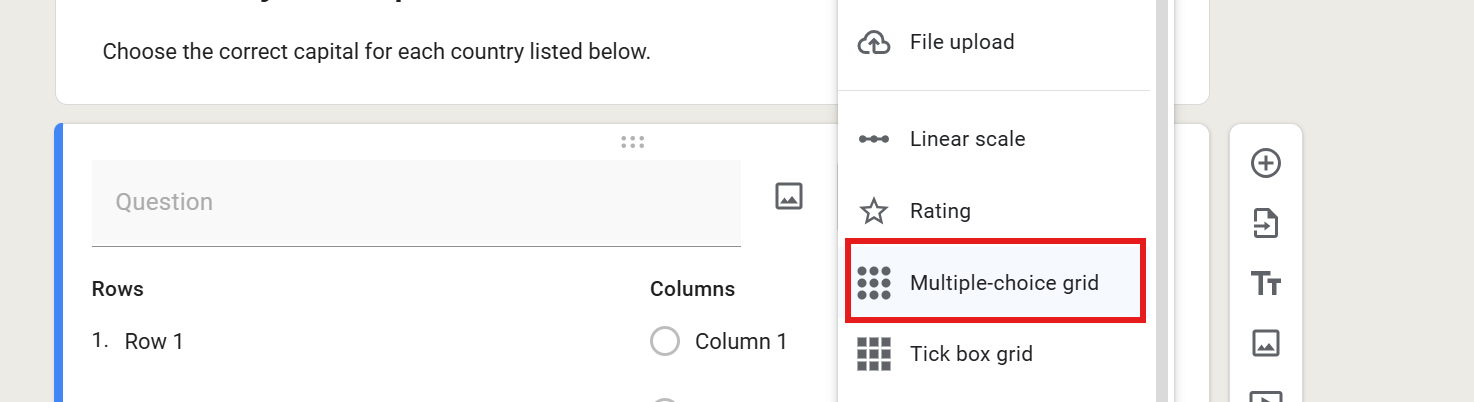
- Click on the new question
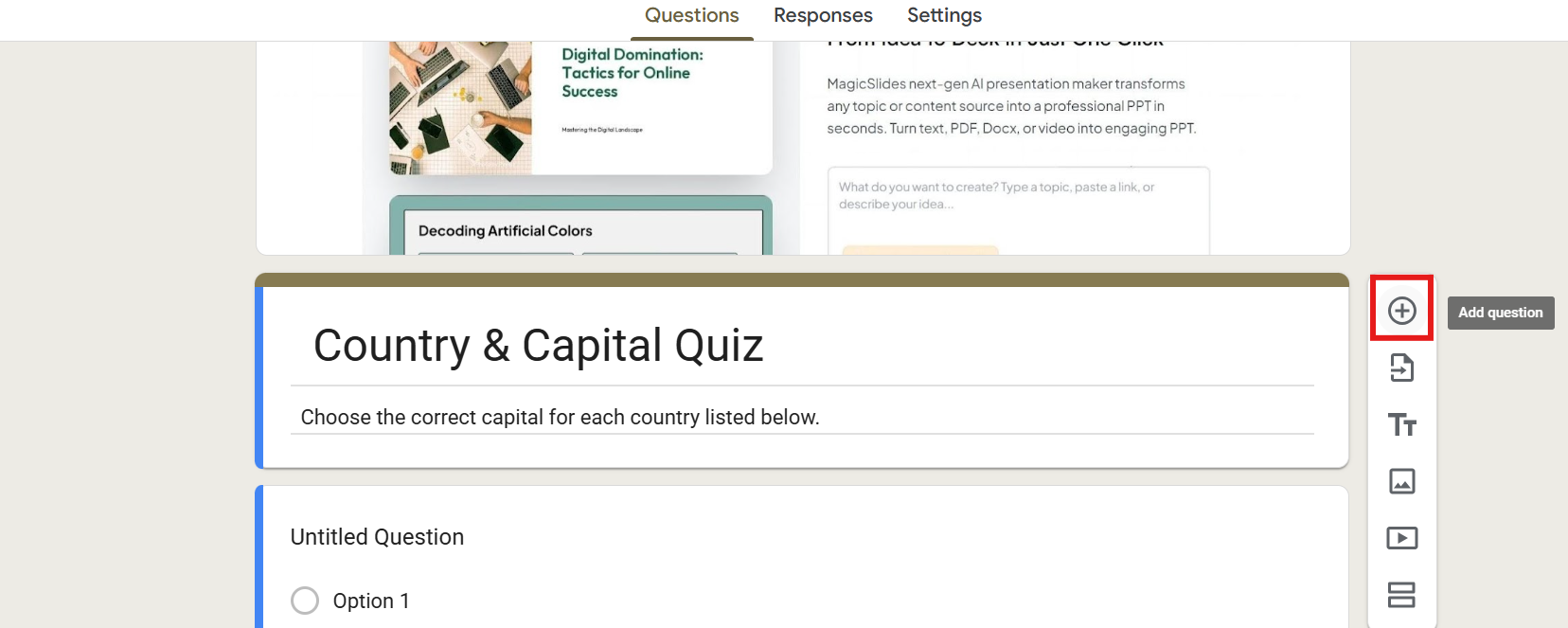
- Change the question type to Multiple Choice Grid
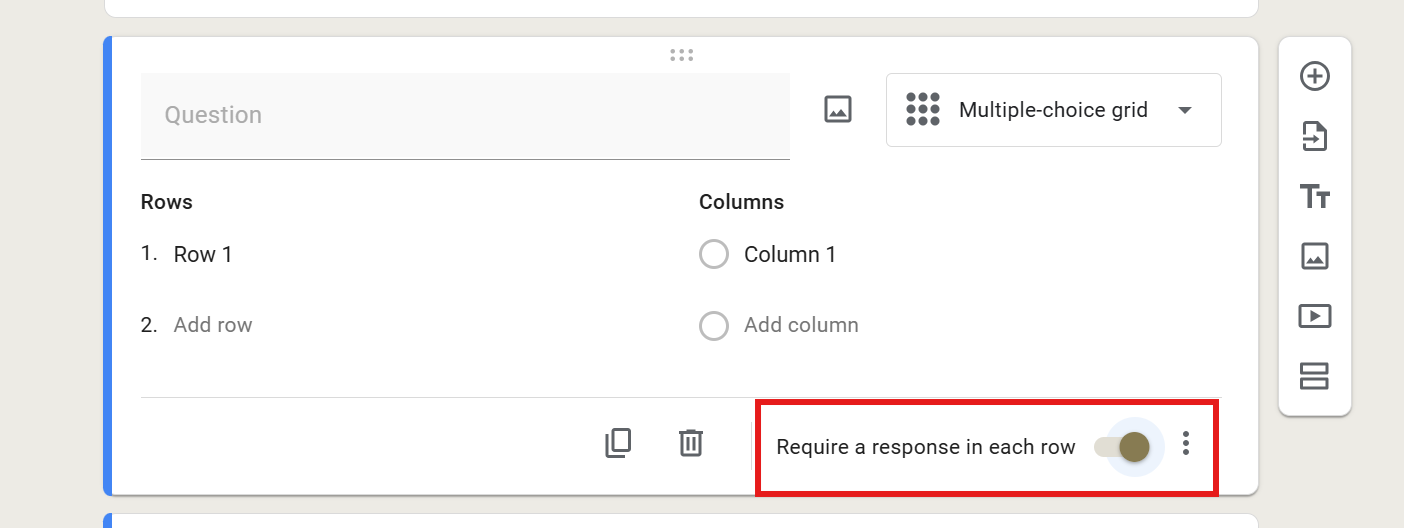
Turn on the option that requires a response in each row. This is to ensure respondents match every item.
Turning Matching Questions into a Quiz
For this:
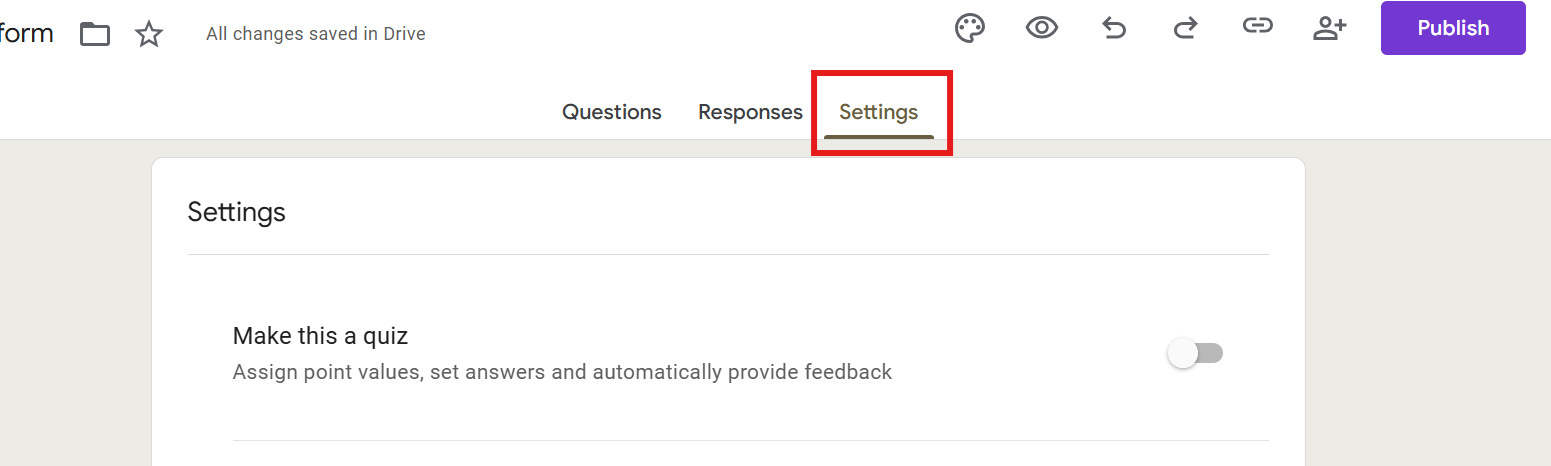
- Click on Settings
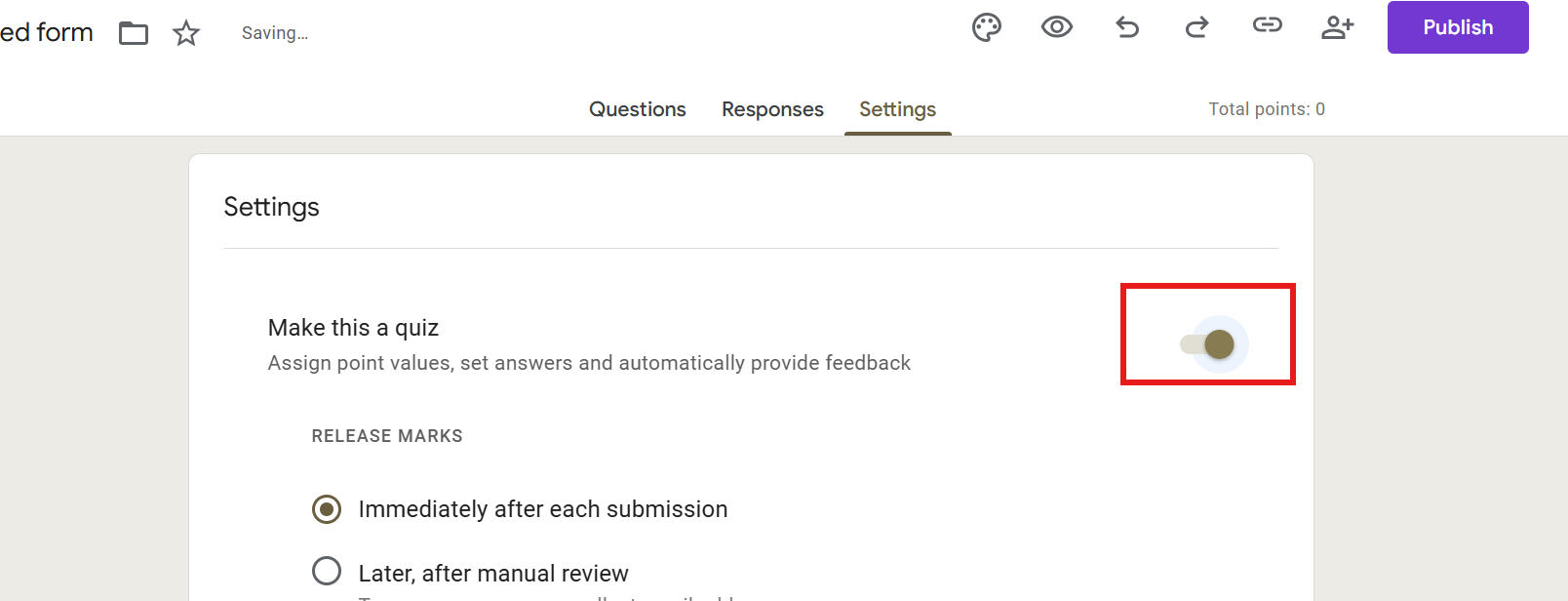
- Turn on “Make this a quiz.”
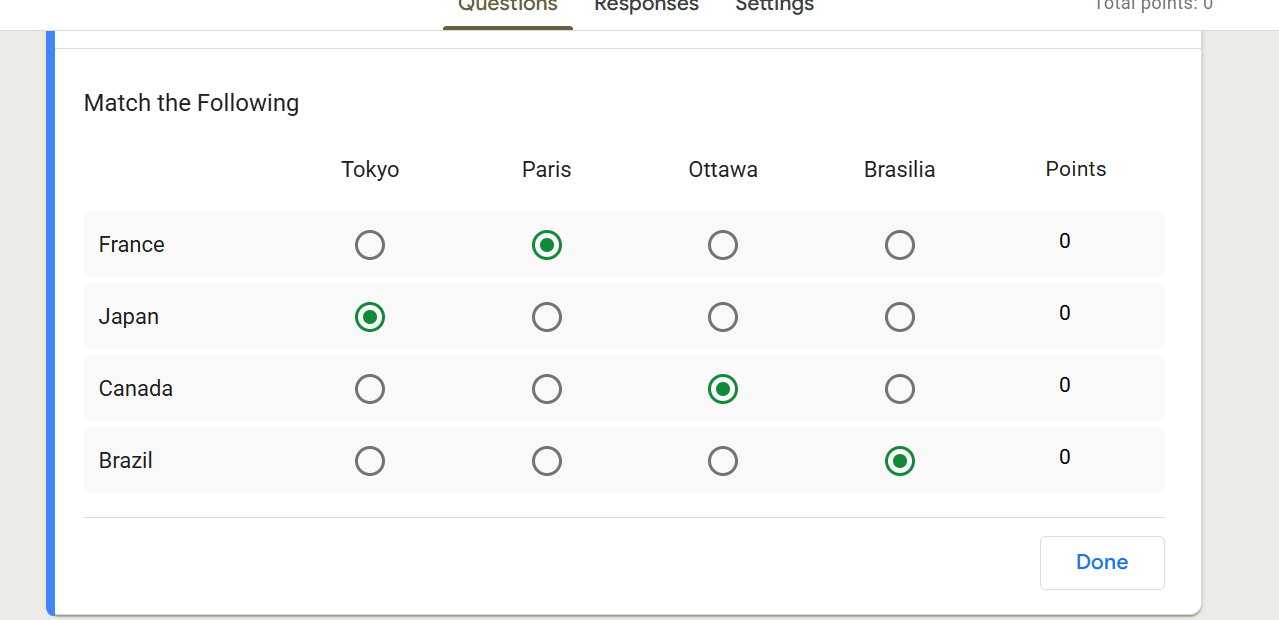
- Open the answer key for your grid question
- Select the correct match
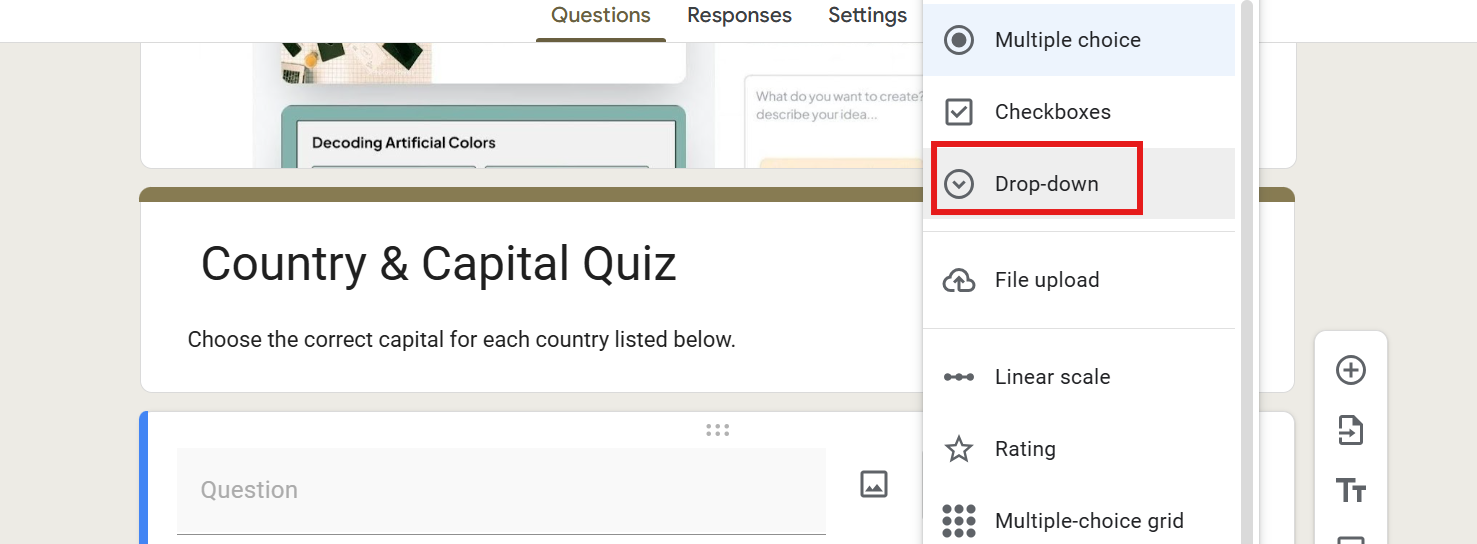
Method 2: Using Dropdown Questions
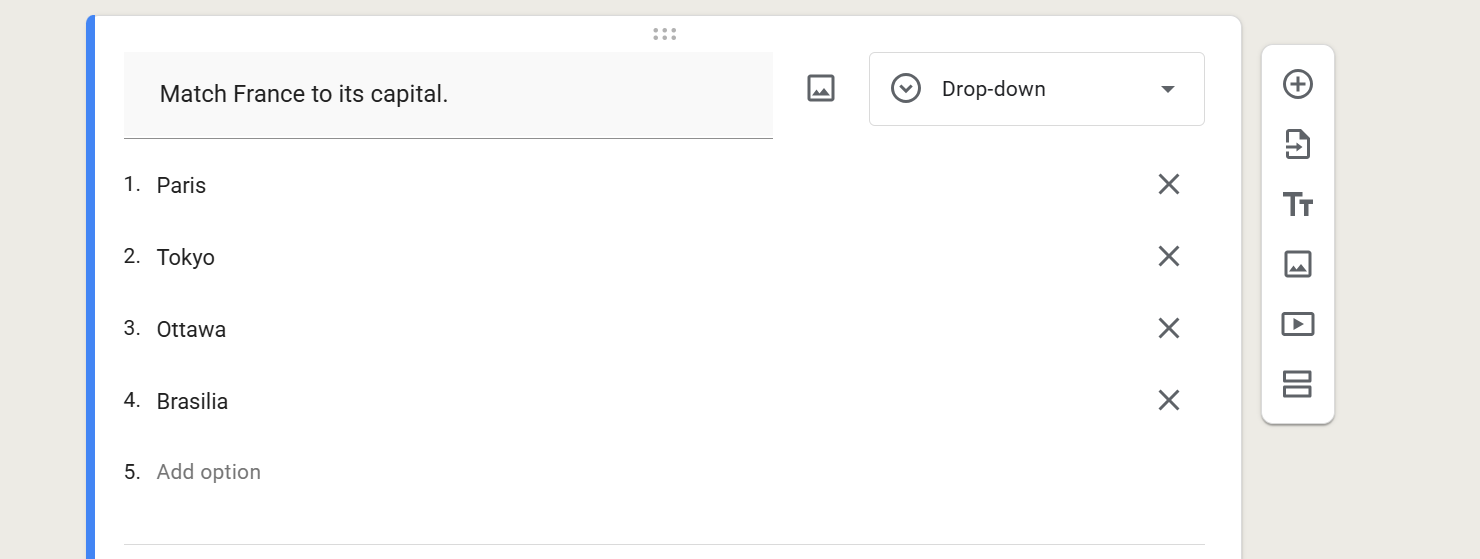
Another way to create matching is by using drop-down questions.
For example:
Match France to its capital.
Then provide a dropdown list of capitals.
Choosing the Right Method
- For real matching style - use Multiple Choice Grid
- For mobile-friendly forms - use DropDowns
- For short quizzes - use Multiple choice
Customizing Your Matching Form You can improve your form’s appearance using the palette icon at the top.

You can:
- Change colors
- Fonts
- Add a header image
Previewing Your Matching Questions
Before sharing, preview your form using the eye icon.

Check for:
- Correct answers
- Clear instructions
- No duplicate confusion
- Proper formatting
Tips for Creating Effective Matching Questions
- Keep lists short and simple
- Use clear instructions
- Avoid trick questions
- Limit similar answer choices
- Test your form before sharing
- Stick to one category per question
Common Mistakes to Avoid
- Adding too many pairs in one grid
- Using unclear instructions
- Forgetting to set answer keys
- Allowing duplicate matches when not intended
- Mixing unrelated categories
Creating Matching Forms Faster With MagicForm
While Google Forms is easy to use, creating matching questions manually can still take so much of your time. MagicForm.app is an AI-powered quiz maker tool. It helps generate structured quizzes and questions quickly!
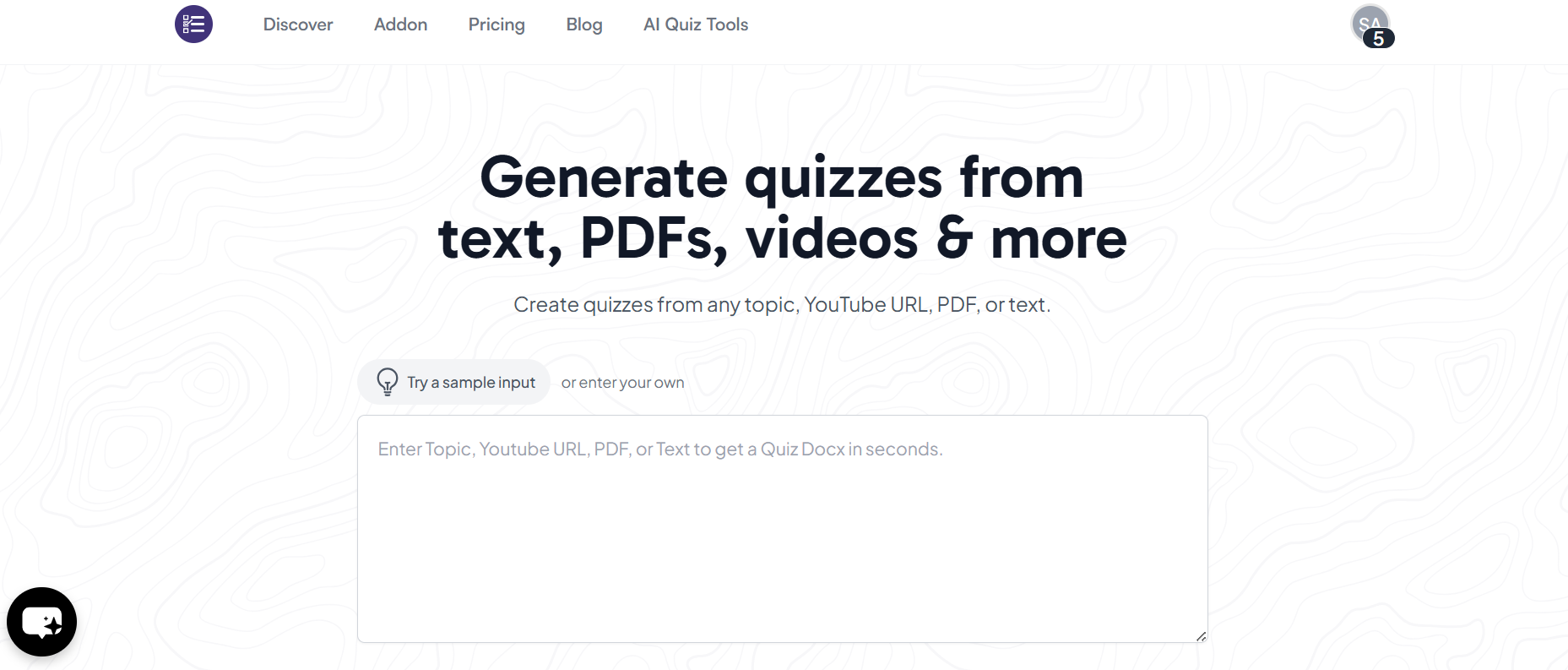
MagicForm can suggest matching-style questions based on your topic. You can then transfer these questions into Google Forms. This saves you time. It also reduces manual effort.
Conclusion
Learning how to do matching on Google Forms is useful for teachers, trainers, and quiz creators. Even though there is no built-in matching type, Google Forms provides smart alternatives.
The Multiple Choice Grid method works best for true matching questions. By previewing your form and testing it before sharing, you ensure a smooth experience for respondents. MagicForm can further speed up the process. It helps improve the question quality.
Also: Read How to Share Google Forms.
FAQs
Q1. Does Google Forms have a matching question type?
No. Google Forms does not have a dedicated matching question type like some LMS platforms. However, you can easily simulate matching questions using the Multiple Choice Grid option.
Q2. Can matching questions be auto-graded in Google Forms?
Yes. Matching questions can be auto-graded when you turn on quiz mode. You simply set the correct answers in the answer key, and Google Forms grades responses automatically.
Q3. Can I prevent respondents from using the same answer twice?
Yes. Google Forms allows you to limit one response per column in Multiple Choice Grid questions. This ensures each option can only be selected once, just like traditional matching exercises.
Q4. Are matching questions mobile-friendly?
Yes. They work on mobile devices, but large grids can feel crowded on small screens. If your audience is mostly on phones, dropdown-based matching may provide a smoother experience.
Q5. How many pairs should a matching question include?
Ideally, keep it between 4–8 pairs to avoid overwhelming respondents. Too many matches in one question can look cluttered and reduce accuracy.
Q6. Can MagicForm help create matching questions?
Yes. MagicForm can generate matching-style questions based on your topic using AI. You can quickly copy these into Google Forms, saving time and effort when building quizzes.
Q7. Is MagicForm better than creating matching questions manually?
If you create quizzes often, MagicForm can speed up the process by suggesting well-structured questions instantly. It reduces manual work and helps you build professional-quality forms faster.